
Business & Users Onboarding
•WhataTalk Sign Up & Account Creation
WhataTalk allows businesses to manage their WhatsApp communication efficiently. Before you can start using the platform, you need to create a WhataTalk account. This account serves as the primary access point for your business dashboard.
Prerequisites
- A valid email address (Company email recommended).
- A mobile number for contact.
- Basic business details (Business Name).
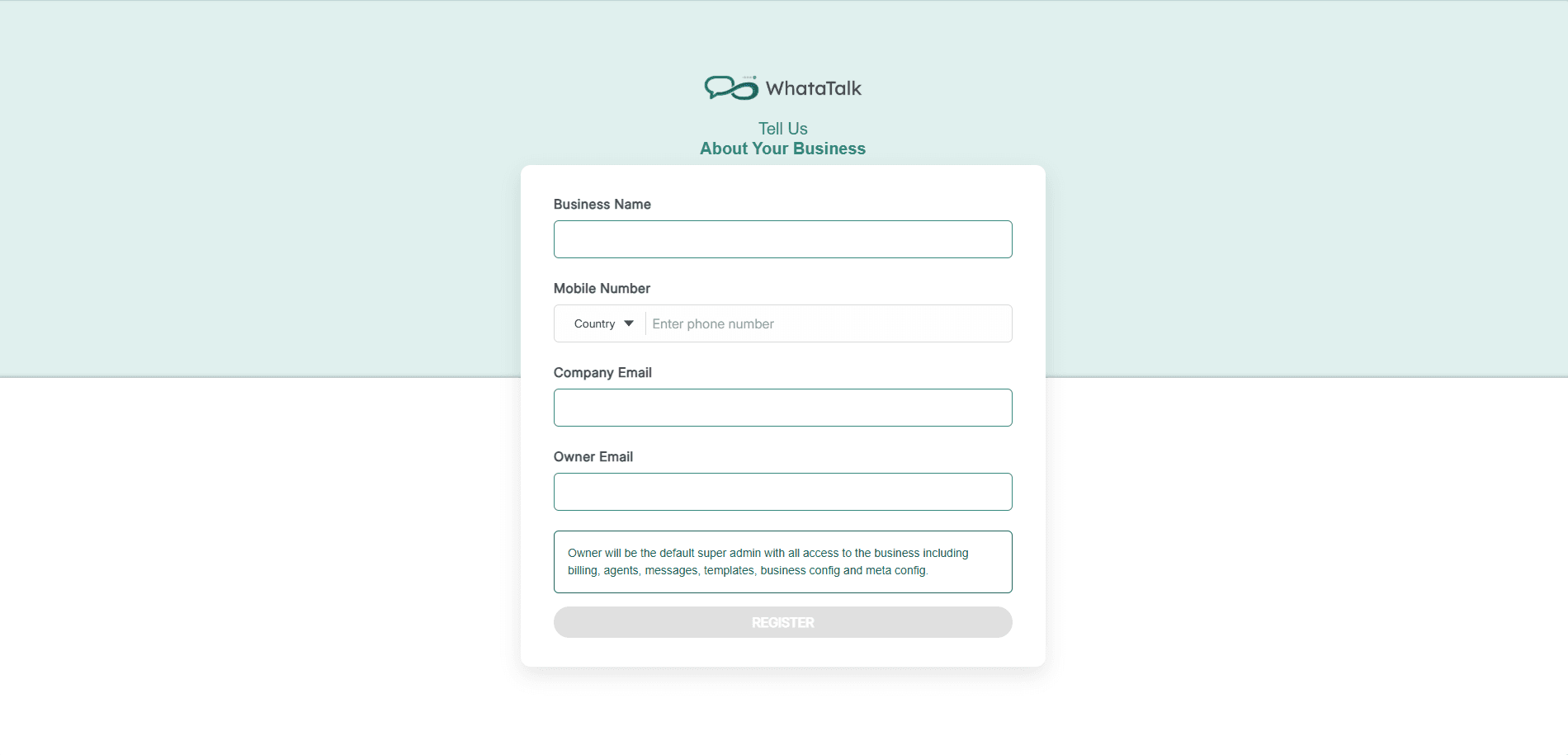
Step 1: Account Registration
- Navigate to the WhataTalk registration page (typically found at a URL like
app.whatatalk.com/registeror/Onboarding-business). - You will be presented with a registration form requiring basic business and contact details:
- Business Name: Enter the official name of your company. This helps identify your workspace if you manage multiple businesses later.
- Mobile Number: Provide a reliable contact number for your primary account admin.
- Company Email: Enter a valid email address that you monitor regularly. This will be used for official WhataTalk communication, billing notices, and important system alerts.
- Owner Email (Admin): This is the email address that will be used to log in to the WhataTalk dashboard. The owner has the highest level of access (Super Admin), including managing billing, adding agents, and configuring settings.
- Click "Register" or "Sign Up".
Step 2: Receiving Temporary Password
Security is paramount. WhataTalk requires you to verify ownership of the email address provided.
- After submitting the registration form, check the inbox of the "Owner Email" you provided.
- You should receive an email from WhataTalk containing a one-time temporary password.
- Navigate to the login page and use this temporary password to log in for the first time.
- If you don't receive the email within a few minutes, check your spam folder.
Step 3: Password Creation
Upon your first login using the temporary password, you must secure your account by creating a new password.
- You will be prompted to create a new password.
- Strong Password Policy: WhataTalk enforces strong passwords to protect your customer data. Ensure your password meets the minimum requirements (typically a combination of uppercase letters, lowercase letters, numbers, and special characters).
- Confirm the password by typing it again.
- Click "Set Password" or "Continue".
Step 4: Accept Business Invite
After setting your new password, you will be taken to an Invite screen.
- On the Invite screen, you will see the name of the business you registered.
- Click to accept the invite. Doing this will activate both your business workspace and your user account.
Step 5: Next Steps
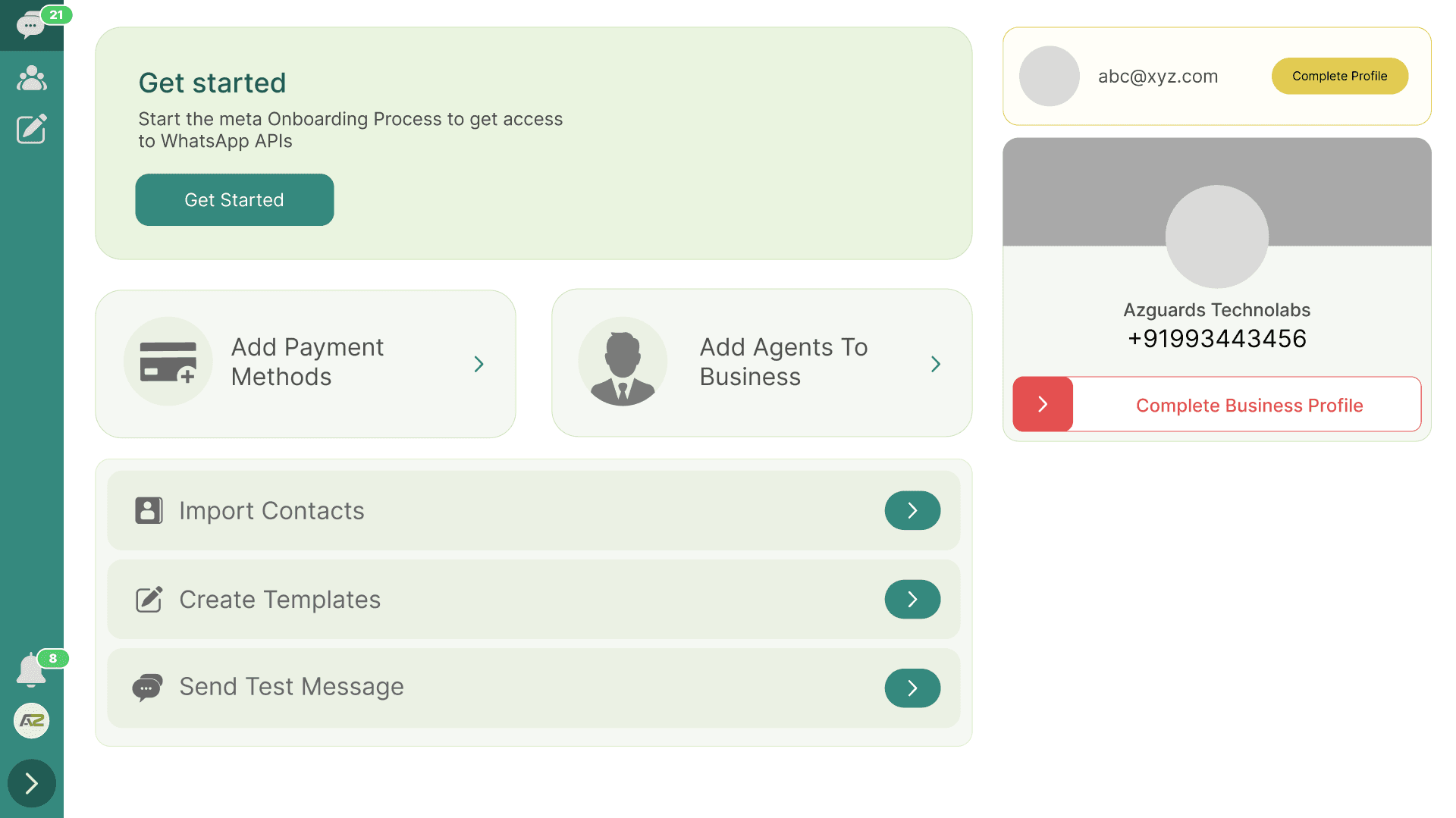
After successfully creating your account and setting a password, you will be directed to land on the Business Dashboard from where you can proceed with meta business onboarding
- Meta Onboarding
- Business Profile Update
- User Profile Update
- Import Contact
- Create Template