
Broadcast Groups Overview & Management
In WhataTalk, a Broadcast Group is a static, manually curated list of contacts. It is primarily used as a targeting audience for Campaigns (Broadcasts).
What is a Broadcast Group?
In WhataTalk, a Broadcast Group is a static, manually curated list of contacts. It is primarily used as a targeting audience for Campaigns (Broadcasts).
Crucial Distinction from WhatsApp Consumer Groups: A Broadcast Group in WhataTalk is not the same as a group chat on the standard WhatsApp mobile app.
- In a standard WhatsApp Group: All members can see each other, and when one person replies, everyone sees the reply.
- In a WhataTalk Broadcast Group: The list is only visible to you (the business). When you send a campaign to this group, each contact receives the message individually, as a direct, one-on-one message. If a contact replies, their reply comes back to you as a private 1:1 conversation in your WhataTalk inbox.
Broadcast Groups are ideal for fixed lists that don't change often, such as "Franchise Owners," "Beta Testers," or "Internal Team Members." For lists that change frequently based on user behavior (e.g., "Purchased in last 30 days"), using Dynamic Segments (see Section 5.3) is usually more efficient.
Accessing Broadcast Groups
Navigate to Broadcast Groups from the main sidebar navigation.
1. The Broadcast Screen
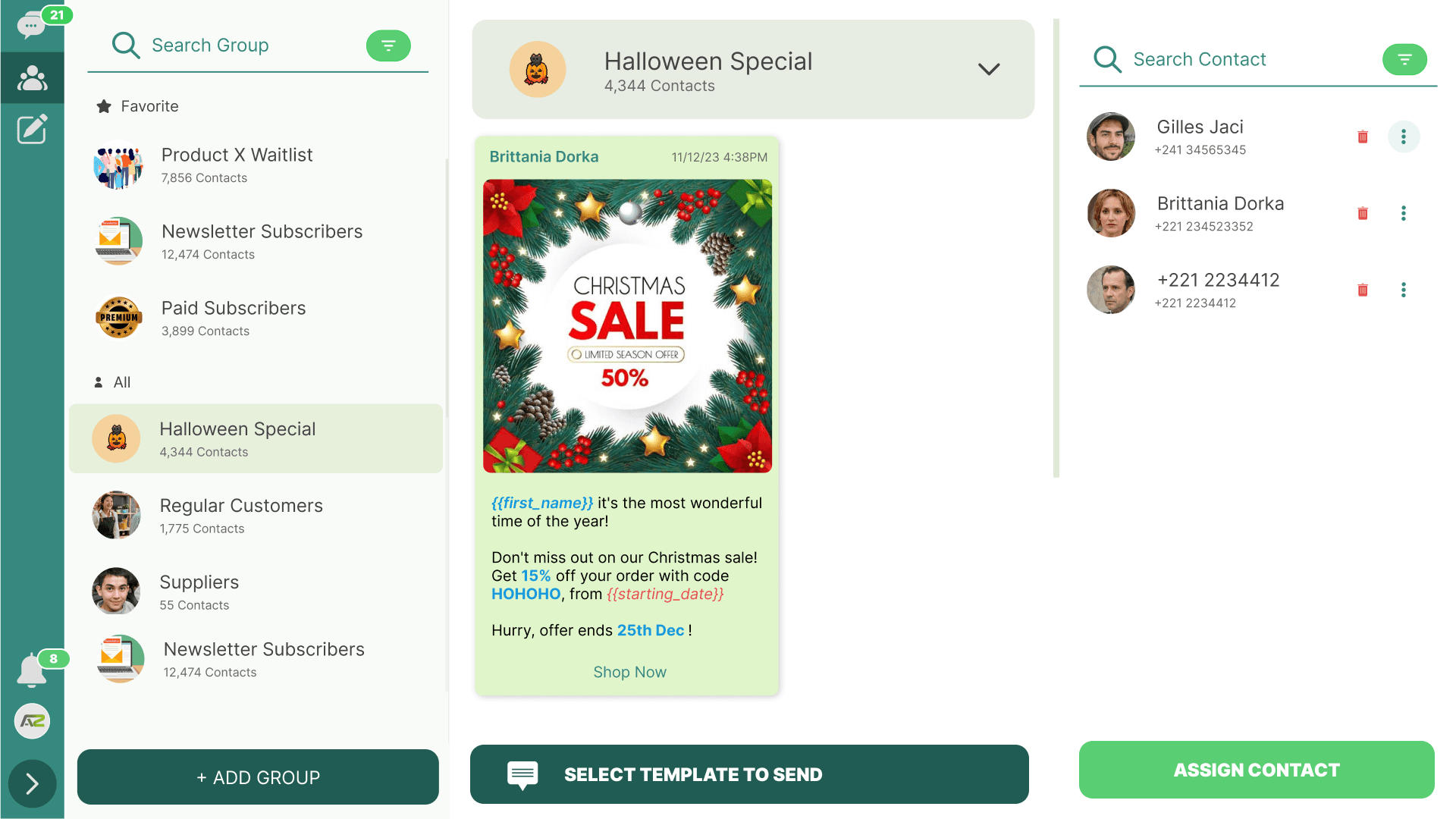
The Broadcast Screen is your central hub for managing groups and sending campaigns. Based on a comprehensive three-panel layout, it lets you handle everything from a single:
- Left Panel (Group Directory): Displays your groups categorized by "Favorite" and "All." You can search for groups, filter them, or click "+ ADD GROUP" at the bottom to create a new one.
- Middle Panel (Campaign Details): When a group is selected, this panel shows the group's name, total contact count, and a preview of the currently selected message template. It includes the "SELECT TEMPLATE TO SEND" button at the bottom.
- Right Panel (Contact Management): Displays the individual contacts assigned to the selected group. You can search for contacts, remove them using the trash icon, or add new members by clicking "ASSIGN CONTACT" at the bottom.
2. Creating a New Group
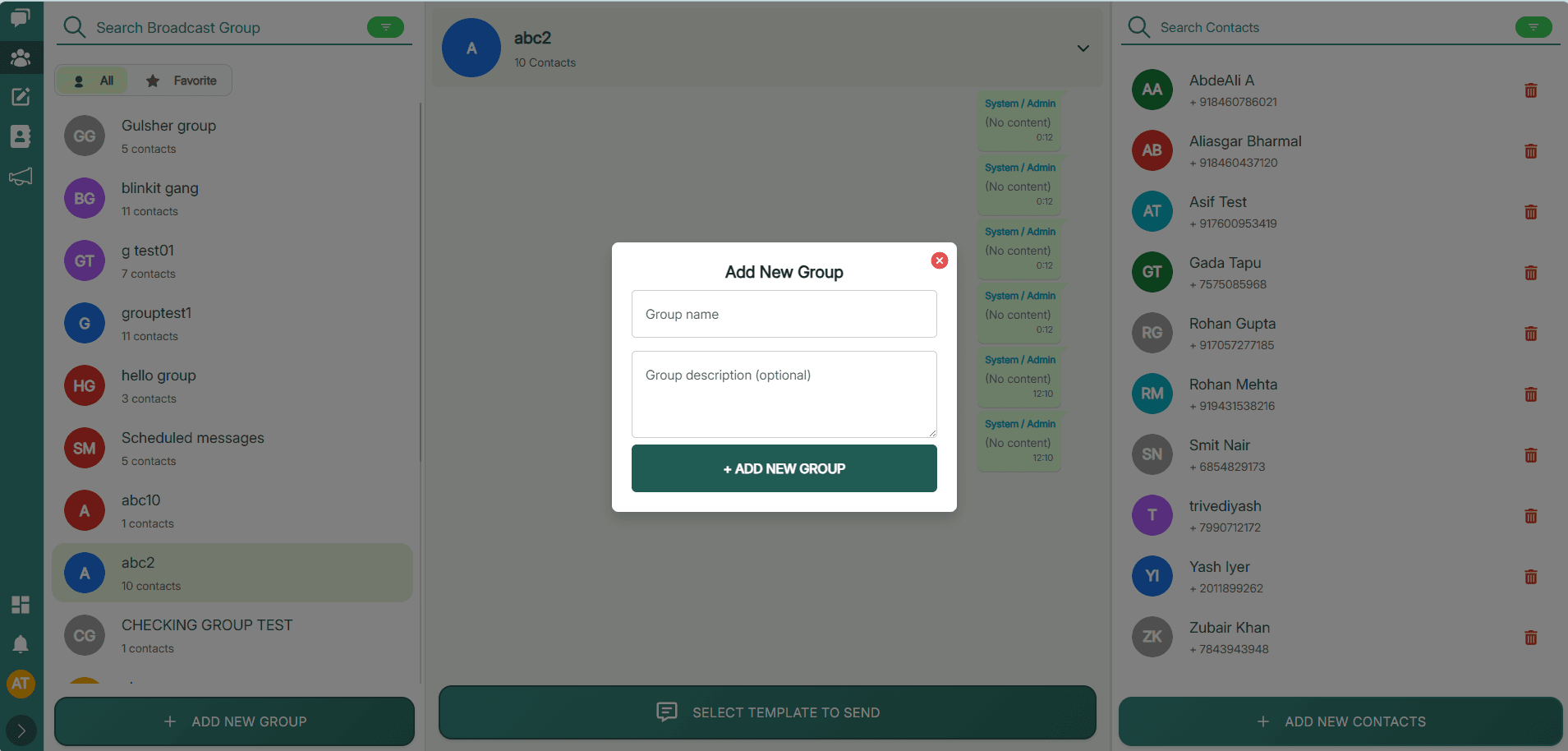
- On the Left Panel of the Broadcast Screen, click the "+ ADD GROUP" button at the bottom.
- A modal or new page will open.
- Group Name (Required): Enter a clear, descriptive name (e.g., "VIP Customers 2023"). This name is only visible to your team.
- Group Image (Optional): Upload an icon or image. This helps agents visually identify the group quickly in the list.
- Description (Optional): Add notes about who should be in this group or its purpose.
- Click "SAVE" or "Create Group".
The group is now created, but it is currently empty. The next step is adding contacts.
3. Managing Group Members (Adding & Removing)
Once a group exists, you manage who belongs to it primarily using the Right Panel.
Adding Contacts to a Group
There are a few ways to populate a group:
- From the Right Panel:
- Select the desired group from the Left Panel.
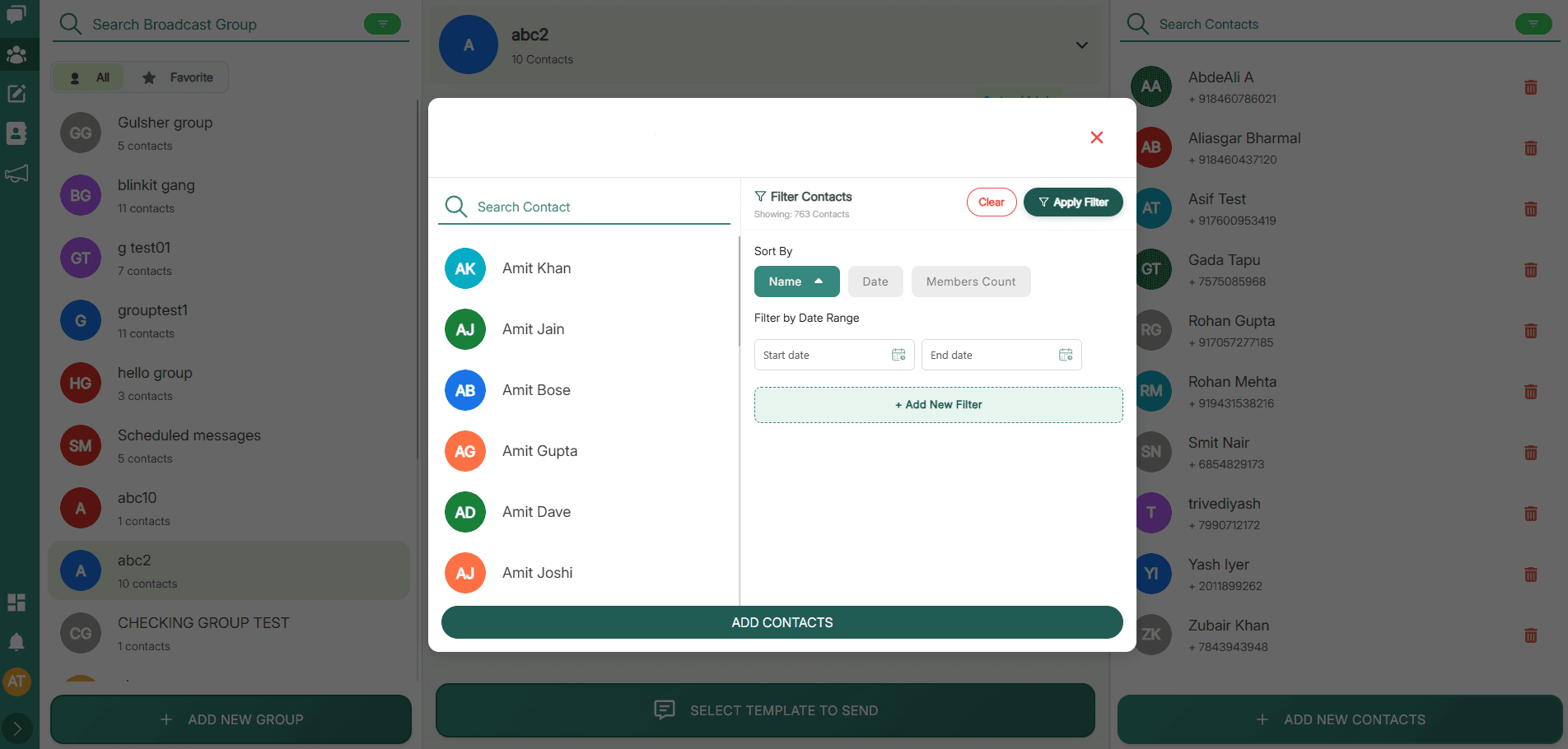
- In the Right Panel, click the "ASSIGN CONTACT" button at the bottom.
- A list of your entire contact database will appear. You can search or filter this list.
- Check the boxes next to the contacts you want to add.
- Click "Save" or "Add to Group".
- From the Main Contacts List:
- Go to the main Contacts page (
/contacts). - Select one or more contacts using the checkboxes.
- Use the bulk action menu and select "Add to Group".
- Select the desired Broadcast Group from the list.
- Go to the main Contacts page (
- During Import: (See Section 4.2). While importing a CSV, you can map a column to add the imported contacts directly into a specific Broadcast Group.
Removing Contacts from a Group
Removing a contact from a group does not delete the contact from your WhataTalk database; it only removes them from that specific list.
- Select the relevant group from the Left Panel.
- In the Right Panel, locate the contact you want to remove.
- Click the Trash/Delete icon next to their name.
- Confirm the removal if prompted.
4. Editing Group Information
If you need to update the group's metadata:
- Select the group from the Group Header.
- Expand the group details from the header Look for an Edit Icon next to the Group Name in the middle panel.
- Make your changes to the name, image, or description.
- Click "Save".
5. Deleting a Broadcast Group
If a group is obsolete (e.g., a list for an event that has passed):
- Select the group to be deleted.
- Access the group options (often a dropdown menu or edit screen next to the group name in the middle panel).
- Select Delete Group.
- Confirm the deletion in the warning popup.
Important Note: Deleting the group permanently removes the list, but it does not delete the contacts who were in the group. They remain in your main Contacts database.
6. Finding and Organizing Groups
As you create more groups, organization in your Left Panel is key.
- Search: Use the Search Bar at the top of the Left Panel to find a group by its name.
- Filter/Sort: Click the Filter icon next to the search bar to sort the list (e.g., Alphabetical or Date Created).
- Favorites: You can star or favorite specific groups. They will appear pinned in the "Favorite" section at the top of the Left Panel for quick access.
7. Sending a Template to a Broadcast Group
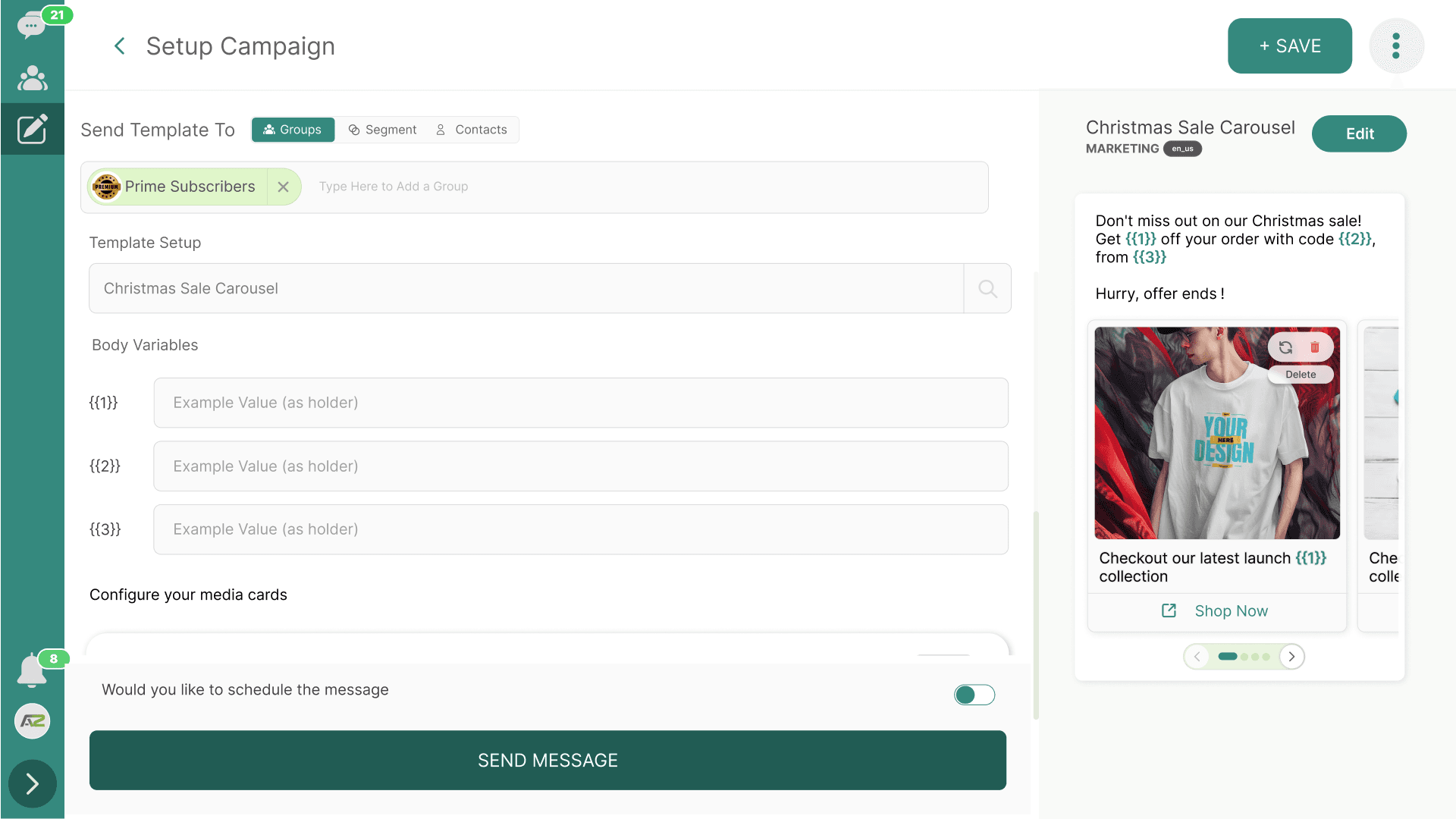
The primary purpose of a Broadcast Group is to send targeted messages (Campaigns) to its members. To send a message:
- Select the Group: Click on the desired Broadcast Group from the Left Panel.
- Select Template: In the Middle Panel, click the "SELECT TEMPLATE TO SEND" button at the bottom.
- Choose an Approved Template: You cannot send regular, free-form messages as a bulk broadcast unless all users are within an active 24-hour service window. Therefore, you must select an approved WhatsApp Template (see section 2.1 for creating templates).
- Configure message variables: The middle panel will show a preview of the template. If your selected template contains variables (e.g.,
{{first_name}}), map these to the appropriate User Attributes. - Review and Send (or Schedule): Review the campaign details. You can usually choose to "Send Now" or schedule the broadcast for a specific date and time.
- Confirm: Confirm the action. The system will dispatch the template as individual 1:1 messages to every contact in the Broadcast Group.