Managing Templates
Once you have created templates in WhataTalk, you need to manage their lifecycle, monitor their approval status, and make edits if necessary.
The Template List
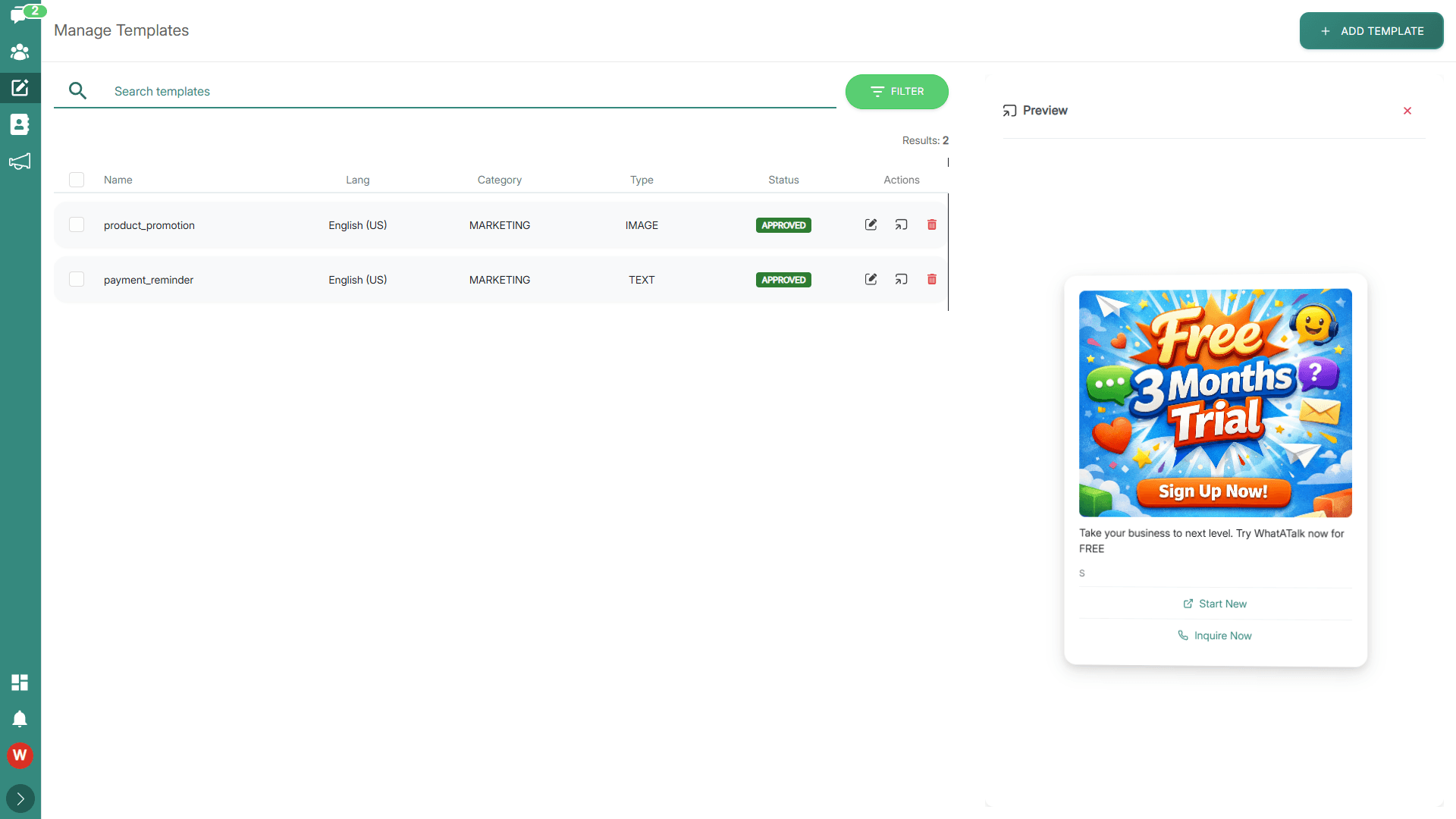
Navigate to Templates (/templates) to view your Templates. This page displays a comprehensive list of all templates associated with your currently selected business account.
Information Displayed
The list typically shows:
- Template Name: The unique identifier.
- Category: Marketing, Utility, or Authentication.
- Language: The configured language.
- Type: Text, Image, Document, Carousel, etc.
- Status: The current Meta approval state.
- Last Updated: The date the template was last modified or reviewed.
- Template Preview: Virtual preview of how the user will be seeing the template on WhatsApp
Understanding Template Statuses
The Status column is the most important piece of information. It dictates whether you can use the template.
- 🟢 APPROVED: The template has been reviewed by Meta and is ready to be used in campaigns or sent directly to contacts.
- 🟡 PENDING: The template is currently in Meta's review queue. This usually takes a few minutes but can occasionally take up to 24 hours. You cannot use a pending template.
- 🔴 REJECTED: Meta reviewed the template and found it violates their Business or Commerce Policies, or it was incorrectly categorized.
Action Required: You must edit the template to address the issues and resubmit it. The details panel will often provide a reason for the rejection.
- 🟠 PAUSED: The template was previously approved but has recently received a high volume of negative feedback (e.g., users blocking your number or reporting the message as spam). Meta temporarily pauses the template to protect your phone number's quality rating.
- Action Required: Review your targeting and template content. You may need to edit it to make it more relevant before Meta unpauses it.
- ⚫ DISABLED: The template has been permanently disabled by Meta, usually due to sustained negative feedback while in a Paused state, or severe policy violations. It cannot be used or edited.
Editing a Template
You can edit existing templates, but there are strict rules governed by Meta regarding when and what you can edit.
When Can You Edit?
- You can edit templates that are currently APPROVED or REJECTED.
- You cannot edit templates that are PENDING, PAUSED, or DISABLED.
How to Edit
- Locate the template in the list.
- Click the Edit Icon (usually a pencil icon) in the actions column.
- The Template Builder will open, populated with the current content.
- Make your necessary changes (e.g., fixing a typo, updating a variable, changing a button link).
- Click "SAVE" or "SUBMIT".
Important Note on Editing Approved Templates
When you edit an Approved template and submit the changes, the template is effectively resubmitted for review to Meta.
- The status will change back to PENDING.
- You cannot use the template in campaigns while it is in the pending state after an edit. Ensure you do not edit active templates right before a major campaign launch.
Deleting a Template
If a template is no longer needed (e.g., an old seasonal promotion), you can delete it to keep your template gallery organized.
- Locate the template in the list.
- Click the Trash/Delete Icon.
- Confirm the deletion in the warning popup.
Warnings regarding Deletion:
- Deleting a template from WhataTalk also deletes it from your Meta WhatsApp Business Account.
- This action is permanent and cannot be undone.
- You cannot delete a template that is currently active in a scheduled or running campaign.
Best Practices for Management
- Monitor Statuses Regularly: Check the Templates page frequently, especially after submitting new templates, to catch rejections early.
- Address Rejections Promptly: Read the rejection reasons provided by Meta. Common reasons include missing sample data for variables, mismatched language/content, or overly promotional content in a Utility category.
- Archive/Delete Old Templates: Keep your workspace clean by deleting templates you are certain you will never use again.