
Conversations
•Messaging Interface
The Messaging Interface in WhataTalk is your central hub for real-time, one-on-one communication with customers. It's designed to be intuitive and efficient, handling various message types supported by the WhatsApp Business API.
Accessing the Interface
To open the messaging interface, log in to your WhataTalk dashboard and navigate to Conversations from the main sidebar navigation.
Interface Layout
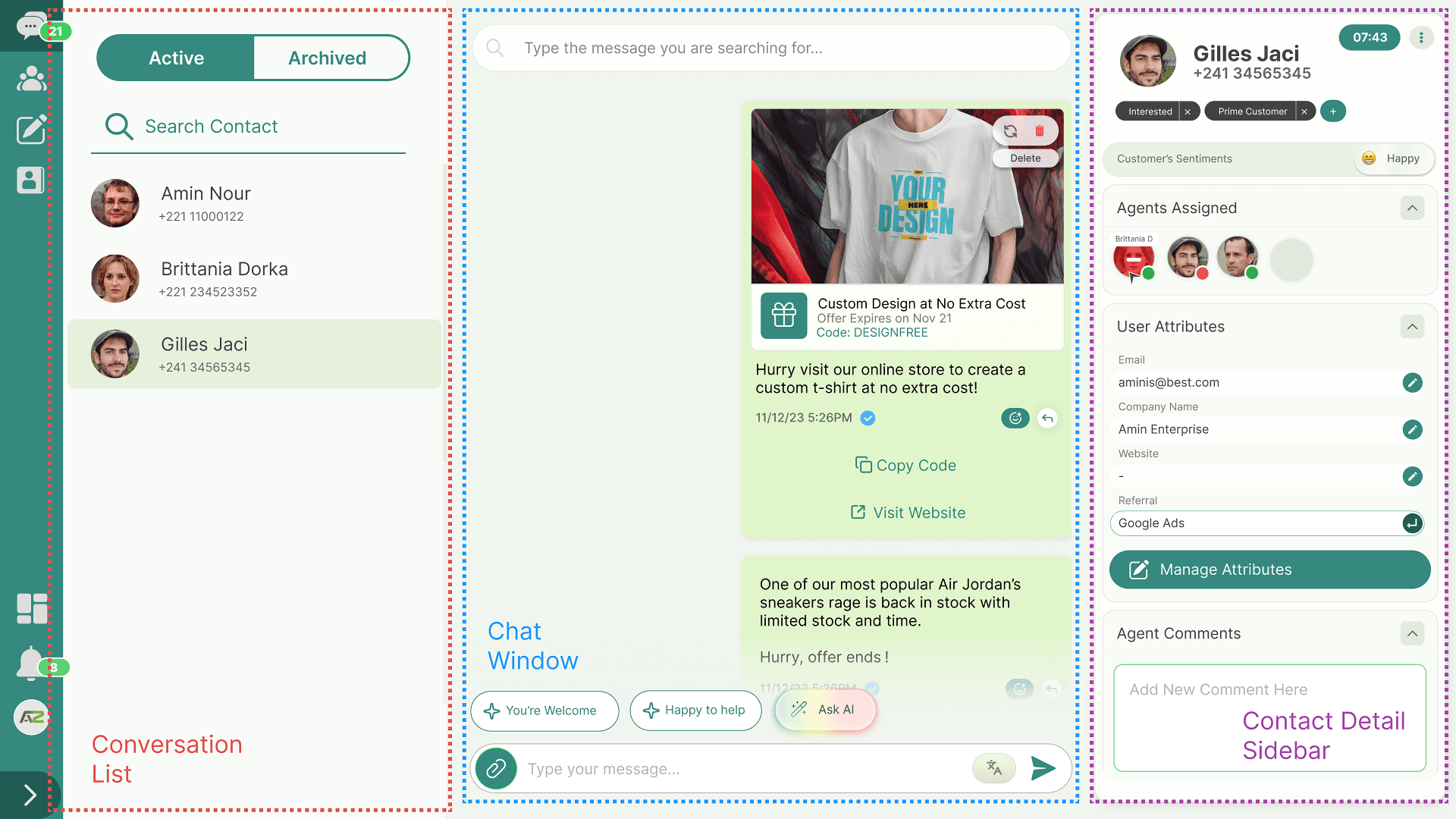
The interface is typically divided into three main sections:
- Left Panel: Conversation List
- This panel displays all your current chats.
- It features tabs to toggle between Active and Archived conversations.
- A search bar allows you to quickly find specific contacts by name or phone number.
- Unread message indicators highlight conversations that need your attention.
- Center Panel: Chat Window
- This is the main viewing area where the selected conversation history is displayed.
- Messages from the business are typically on the right, and messages from the customer are on the left.
- The message composer (text box) is located at the bottom of this panel.
- Right Panel: Contact Details & Actions
- This panel provides context about the current contact.
- It displays information such as the contact's name, phone number, assigned tags, and any custom user attributes.
- Quick actions, such as editing contact details or adding notes, may be available here.
Core Features & Functionality
Sending Messages
You can send several types of messages within the chat window, depending on the status of the 24-hour service window.
- Text Messages: Type directly into the message box and hit Enter or click the Send icon. Emojis are supported via an emoji picker.
- Media Attachments: Click the attachment icon (often a paperclip or plus sign) to upload and send images, videos, or documents (PDFs). Note that Meta has specific size limits for media files.
- Templates: If the 24-hour service window is closed, you must initiate the conversation using a pre-approved template. Click the Template icon to browse and select a template from your library.
- Interactive Messages: Within an active 24-hour window, you can send interactive lists or buttons (if configured) to guide the customer through predefined options quickly.
Message Status Indicators
WhataTalk uses standard WhatsApp indicators to show the real-time status of your outgoing messages:
- Clock Icon: The message is queued and waiting to be sent from the WhataTalk server.
- Single Gray Check: The message has been successfully sent to the WhatsApp server.
- Double Gray Check: The message has been delivered to the recipient's phone.
- Double Blue Check: The message has been read by the recipient (Note: This only appears if the recipient has "Read Receipts" enabled on their WhatsApp application).
- Red Exclamation/Error: The message failed to send. This could be due to network issues, sending a free-form message outside the 24-hour window, or the number being invalid.
Managing Conversations
- Assigning Agents: In multi-agent environments, you can assign a conversation to a specific team member. This helps distribute workload and ensures continuity in customer service. Only the assigned agent (and admins) can typically reply to that conversation.
- Add Comments: Agents can add the comment in a particular conversation which will be visible across the board.
Best Practices
- Keep Context Handy: Utilize the right-hand Contact Details panel to personalize your responses based on past interactions or known attributes (e.g., location or VIP status).
- Monitor Failed Messages: Regularly check for red exclamation marks. A failed message might indicate a typo in the phone number or that you need to send an approved template instead.