Scheduling Campaigns
The final step in campaign creation is deciding when the messages should be delivered to the WhatsApp network. Proper timing significantly impacts open rates and engagement.
1. Instant Sending (Send Now)
If your campaign is time-sensitive (e.g., a flash sale starting immediately, or a critical system outage notification), you can dispatch it right away.
Process:
- After configuring your template and selecting your audience, review the campaign summary.
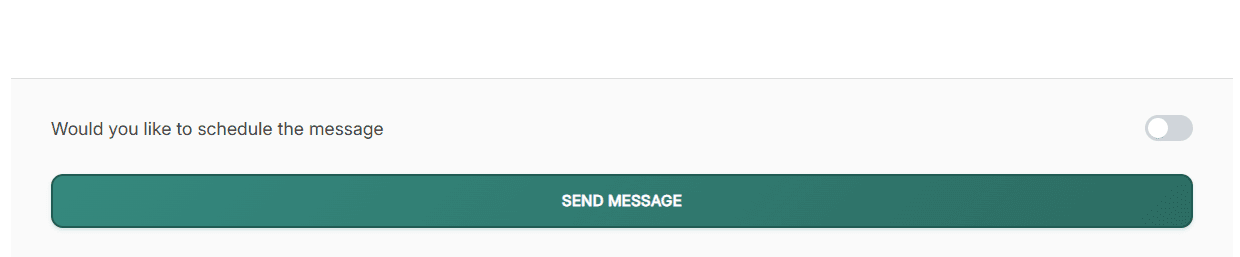
- Locate the final action buttons at the bottom of the page.
- Click "Send Now" (or similar phrasing).
- The system will often ask for a final confirmation, displaying the total number of recipients and the template name.
- Once confirmed, WhataTalk immediately begins queuing the messages and sending them via the Meta API.
Note on Speed: While "Instant" starts the process immediately, sending to thousands of contacts takes time due to API rate limits. The messages will go out as fast as Meta's systems allow for your specific phone number tier.
2. Scheduling for Later


For most marketing campaigns, scheduling is the preferred method. It allows you to build campaigns in advance and ensure they hit your customers' phones at the optimal time (e.g., sending a lunch promotion at 11:30 AM).
Process:
- Instead of "Send Now," "Schedule" it for later by clicking he schedule toggle.
- A date and time picker will appear.
- Select the Date: Choose the day the campaign should start.
- Select the Time: Choose the specific time.
- Important: Pay close attention to the Time Zone displayed. Ensure you are scheduling for the correct time zone relative to your target audience.
- Click "Schedule Campaign".
Managing the Scheduler
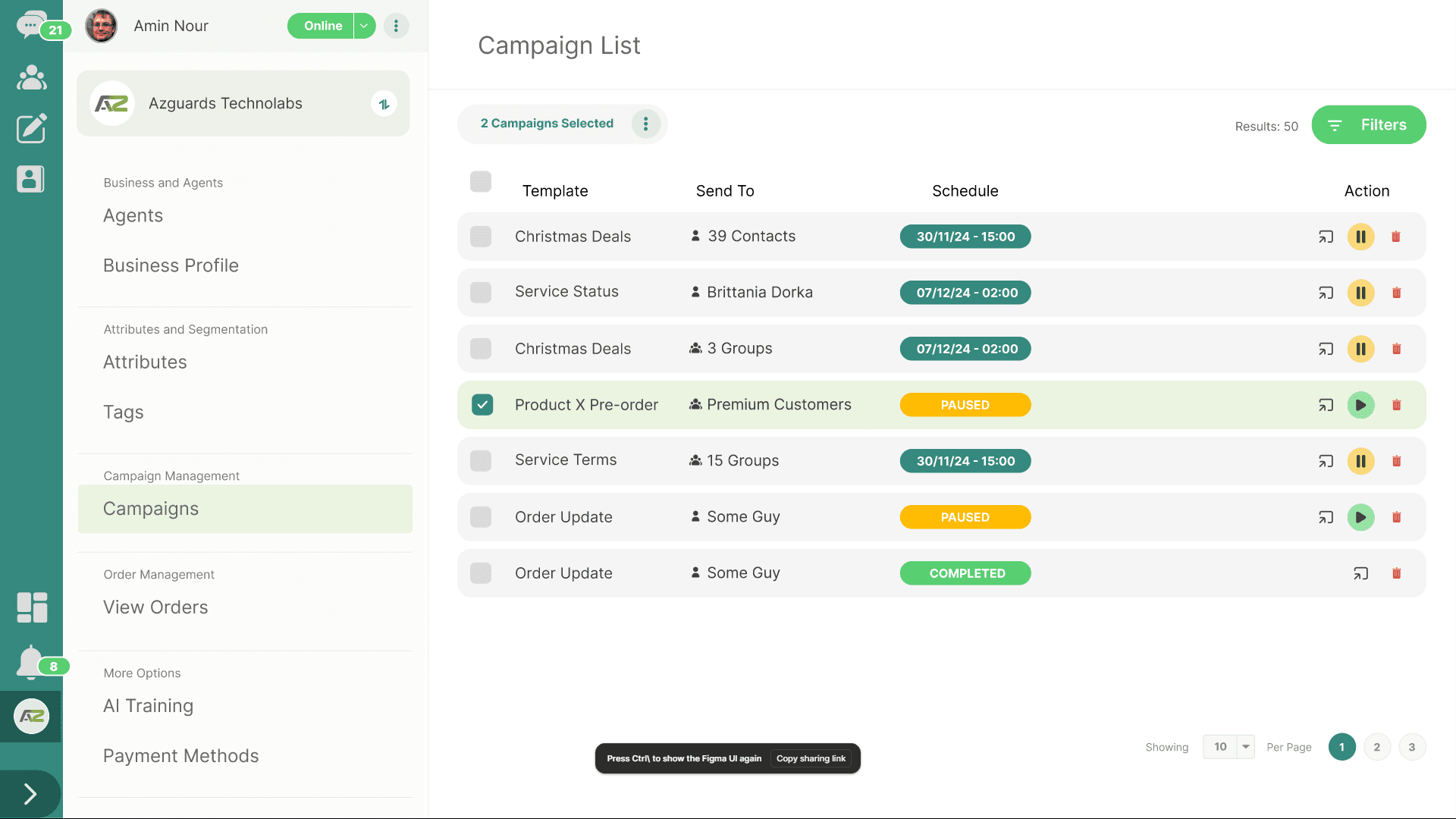
Once a campaign is scheduled, the status would be updated to the Scheduled and will be populated in Upcoming Campaigns section (usually accessible via the main sidebar, e.g., /scheduler).
The Scheduler Dashboard
This dashboard provides a list of all campaigns waiting to be sent, currently sending, or recently finished.
- Status Indicators:
- Scheduled: Waiting for the designated date/time.
- In Progress / Processing: The time has arrived, and the system is actively sending messages to Meta.
- Completed: All messages have been sent to the API.
- Failed: The campaign encountered a fatal error before or during sending.
Actions on Scheduled Campaigns
While a campaign is in the "Scheduled" state (before it starts sending), you have control over it:
- Edit: If you notice a mistake (e.g., wrong template, wrong audience segment), you can usually click an Edit Icon (pencil) to pause the schedule, return to the setup flow, make changes, and reschedule it.
- Delete/Cancel: If you need to stop the campaign entirely, click the Trash Icon. This permanently cancels the broadcast.
Important Restriction: Once a campaign's status changes to In Progress, you typically cannot edit it, and canceling it may only stop the remaining unsent messages; messages already queued to Meta cannot be recalled.
Best Practices for Scheduling
- Respect Quiet Hours: Avoid scheduling promotional campaigns late at night or very early in the morning in the recipient's time zone.
- Test Before Blasting: Before scheduling a massive campaign, send a test "Send Now" campaign to a small group of internal team members to verify variable mapping and template appearance.
- Monitor Limits: Ensure you schedule campaigns in a way that respects your daily Meta messaging limits, especially if you have multiple campaigns running on the same day.