
Business & Users Onboarding
•Meta Onboarding (Connect WhataTalk to WhatsApp)
Meta Onboarding (also known as "Embedded Signup") is the critical step to enable WhatsApp Business API messaging on WhataTalk. This connects your Facebook Business Manager to your WhataTalk account, allowing you to send and receive WhatsApp messages.
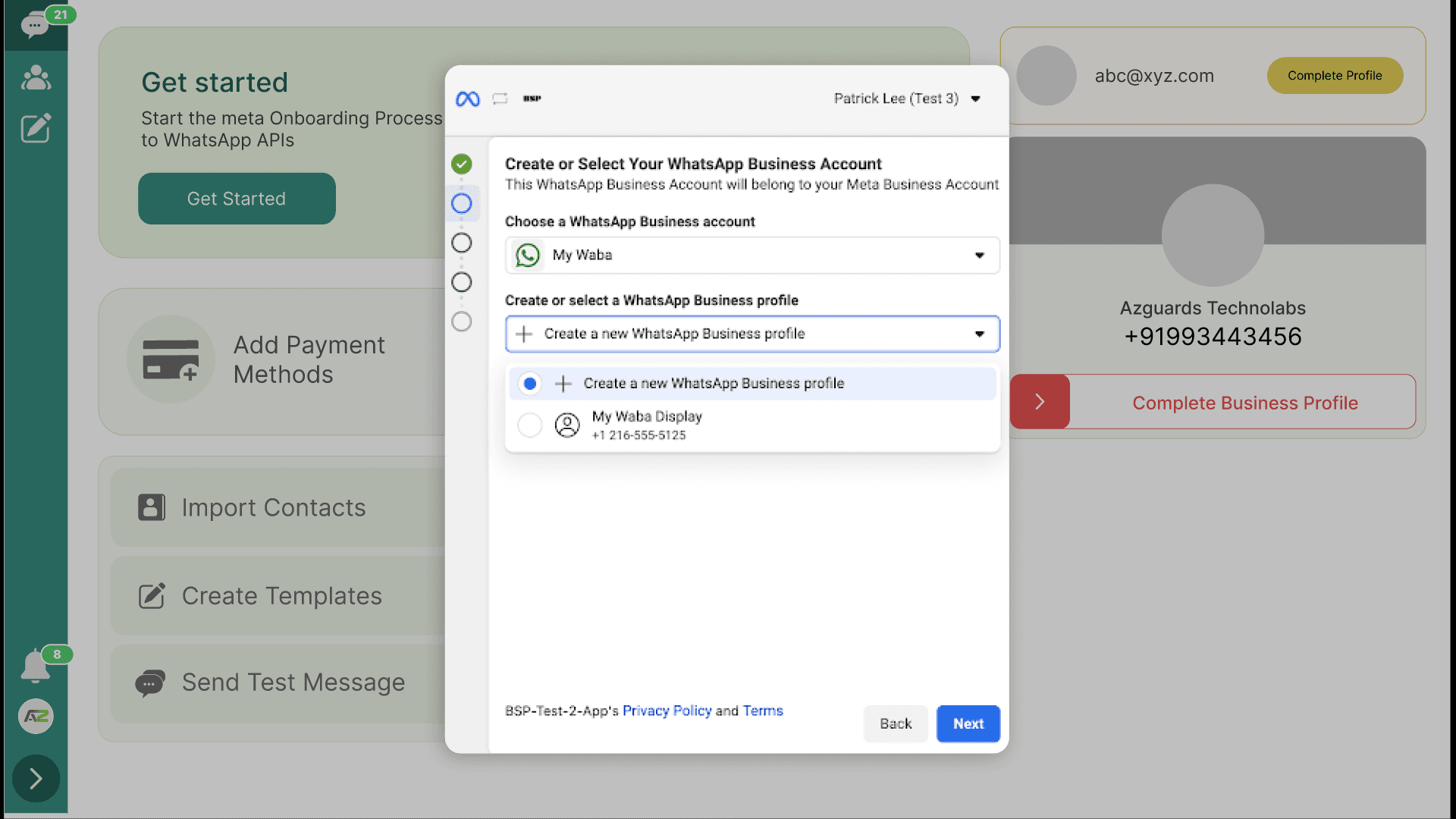
Step-by-Step Flow
1. Start Onboarding from WhataTalk
- Log in to your WhataTalk dashboard.
- Navigate to the Business Dashboard or click on the "Get Started" button in the onboarding checklist.
- Click on "Get Started" Button on the dashbaord.
2. Facebook Login & Permissions
- A popup window will open asking you to log in to Facebook.
- Grant the requested permissions:
- Manage your business.
- Manage your WhatsApp account.
- Billing management.
- Click Continue.
3. Create or Select Meta Business Account
- Select an existing Meta Business Account from the dropdown list.
- Or, create a New Meta Business Account by entering your legal business name and details.
- Click Next.
4. Create or Select WhatsApp Business Profile
- Select an existing WhatsApp Business Account (WABA) if available.
- Or, create a New WhatsApp Business Profile:
- WhatsApp Business Account Name: Usually your business name (internal use).
- WhatsApp Display Name: The name customers will see on WhatsApp. This must adhere to WhatsApp Display Name Guidelines.
- Category: Select your business category.
- Business Description: Add a short description (optional).
- Click Next.
5. Verify Phone Number
- Enter the Phone Number you want to use for WhatsApp.
- Choose a verification method: Text Message (SMS) or Phone Call.
- Click Next.
- Enter the 6-digit verification code sent to your phone.
- Click Verify.
6. Review & Finish
- Review the connected accounts (Business Manager, WABA, Phone Number).
- Click Finish.
- The popup will close, and you will be redirected back to the WhataTalk dashboard.
Post-Onboarding Status
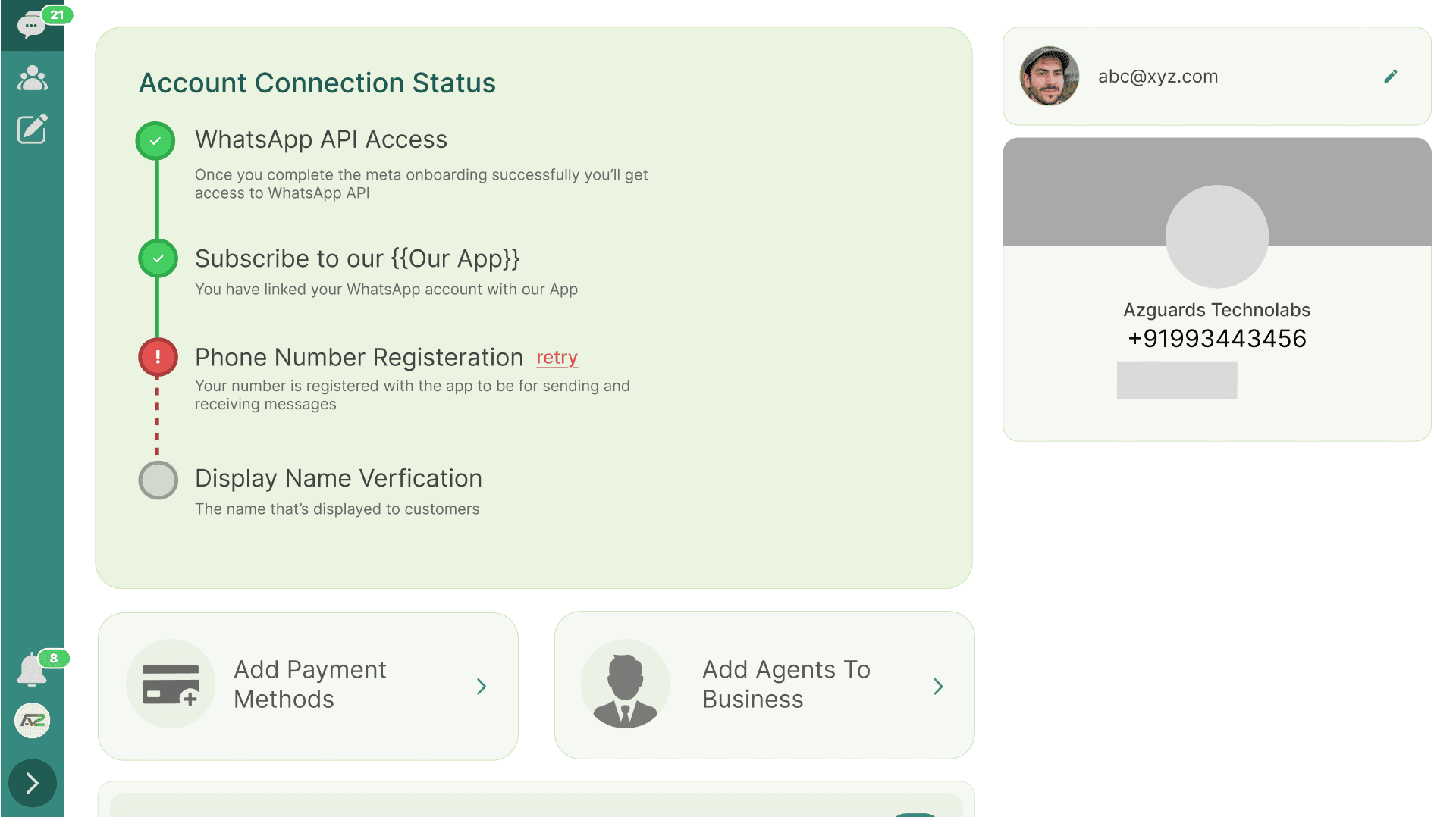
After completing the flow, your account status will update on the WhataTalk dashboard:
- PENDING: Meta is reviewing your display name or business verification. You can start messaging with limitations (Tier 1 messaging limits).
- VERIFIED: Your business is fully verified, and messaging limits are increased.
- REJECTED: Your display name or business verification was rejected. Check your Meta Business Manager for details.
Adding Payment Method
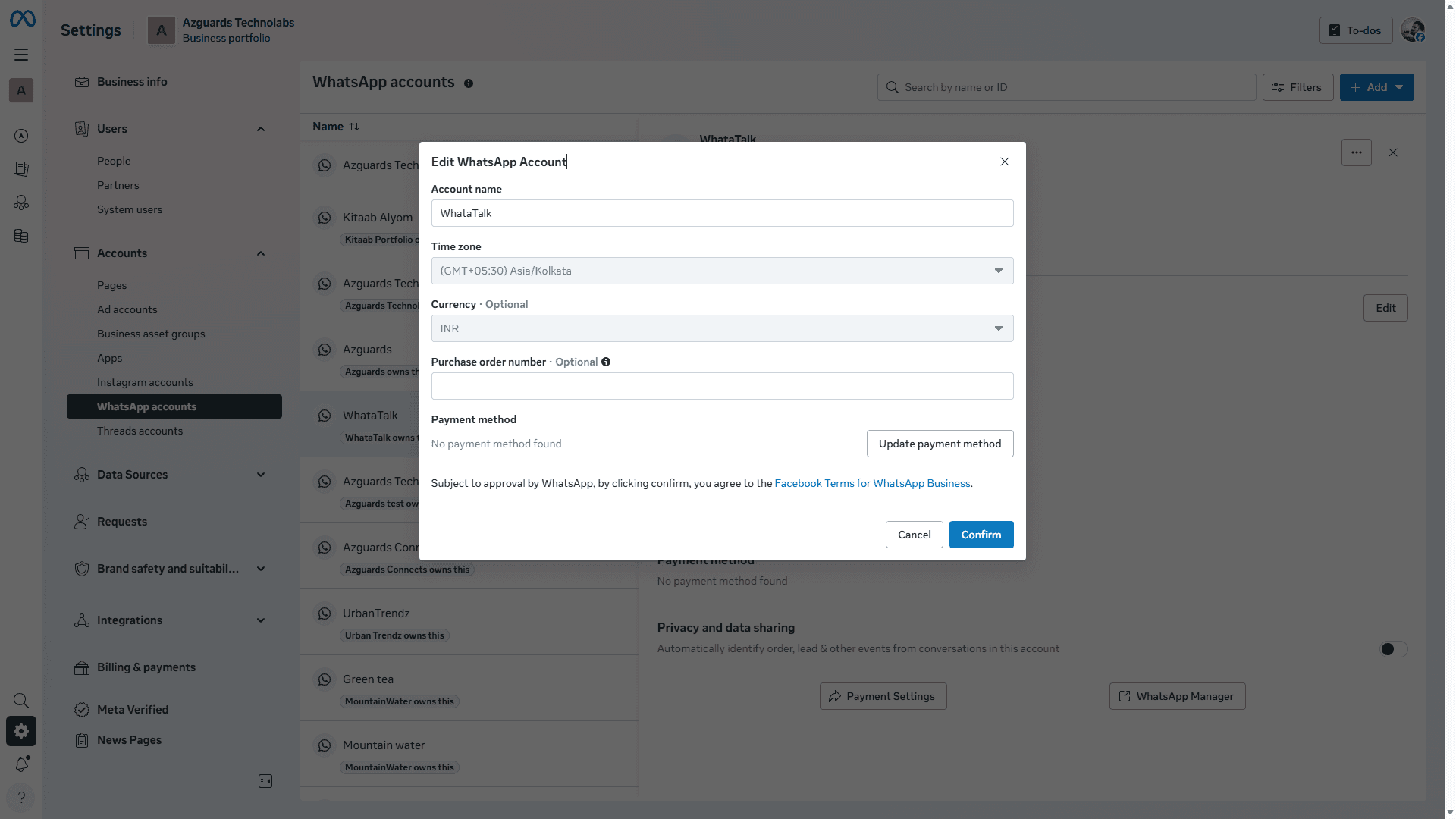
To ensure uninterrupted service, add a payment method in your Meta Business Manager under WhatsApp Account > Settings > Payment Settings.
Troubleshooting
- "Phone number already registered": Ensure the number is deleted from the WhatsApp mobile app.
- "Display Name Rejected": Ensure the name matches your business branding and doesn't violate guidelines (e.g., using all caps, emojis, or generic terms).