
Types of Interactive Messages and Usage
The WhatsApp Business API supports several distinct types of interactive messages, each designed for specific interaction scenarios. WhataTalk facilitates sending these formats to enhance customer engagement.
1. List Messages
Description
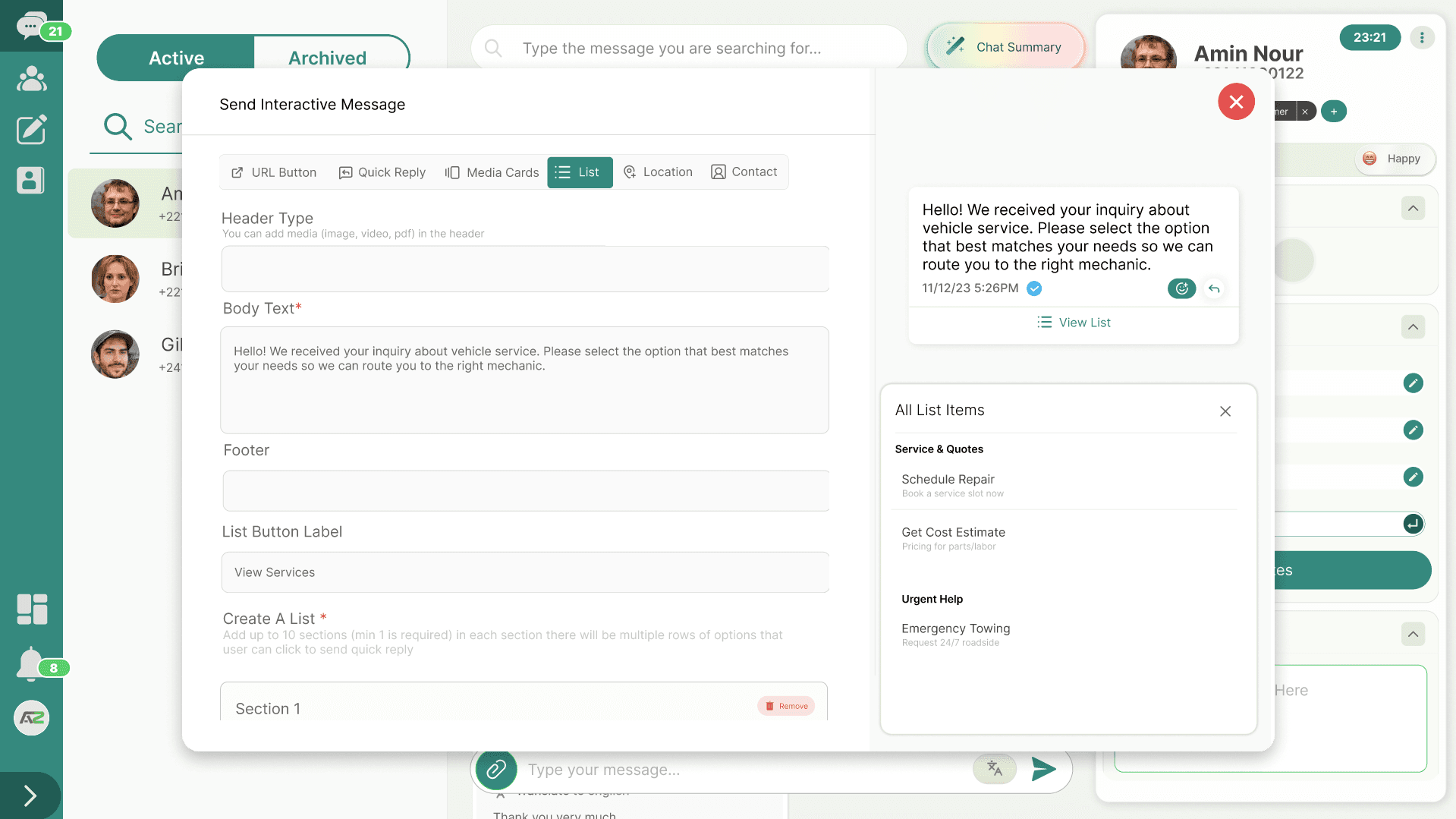
List Messages present a menu of up to 10 options to the user. When the user taps a button attached to the message, a modal opens displaying a selectable list. This is ideal for offering multiple choices in a structured way without cluttering the chat view.
Structure
A List Message consists of:
- Header (Optional): Short text, an image, or a document introducing the list.
- Body (Required): The main text message explaining what the list is for.
- Footer (Optional): Short text at the bottom.
- Button (Required): The text displayed on the main button that opens the list (e.g., "View Menu", "Select Time").
- Sections (Required): The list itself, which can be divided into sections (e.g., "Starters", "Mains"). Each section can contain multiple items.
- Item Title (Required): The main text of the option (up to 24 characters).
- Item Description (Optional): Additional details about the option (up to 72 characters).
Common Use Cases
- Customer Care Menus: Replacing traditional IVR systems (e.g., "Select your issue category").
- Location Selection: Choosing from a list of nearby stores.
- Time Slot Booking: Selecting an appointment time from available options.
- Product Categories: Navigating an e-commerce catalog (e.g., "Electronics", "Clothing").
- FAQ Navigation: Offering a list of frequently asked questions.
Constraints
- Maximum 10 items in total across all sections.
- Cannot be sent outside the 24-hour window (unless it's part of an approved template).
2. Reply Button Messages
Description
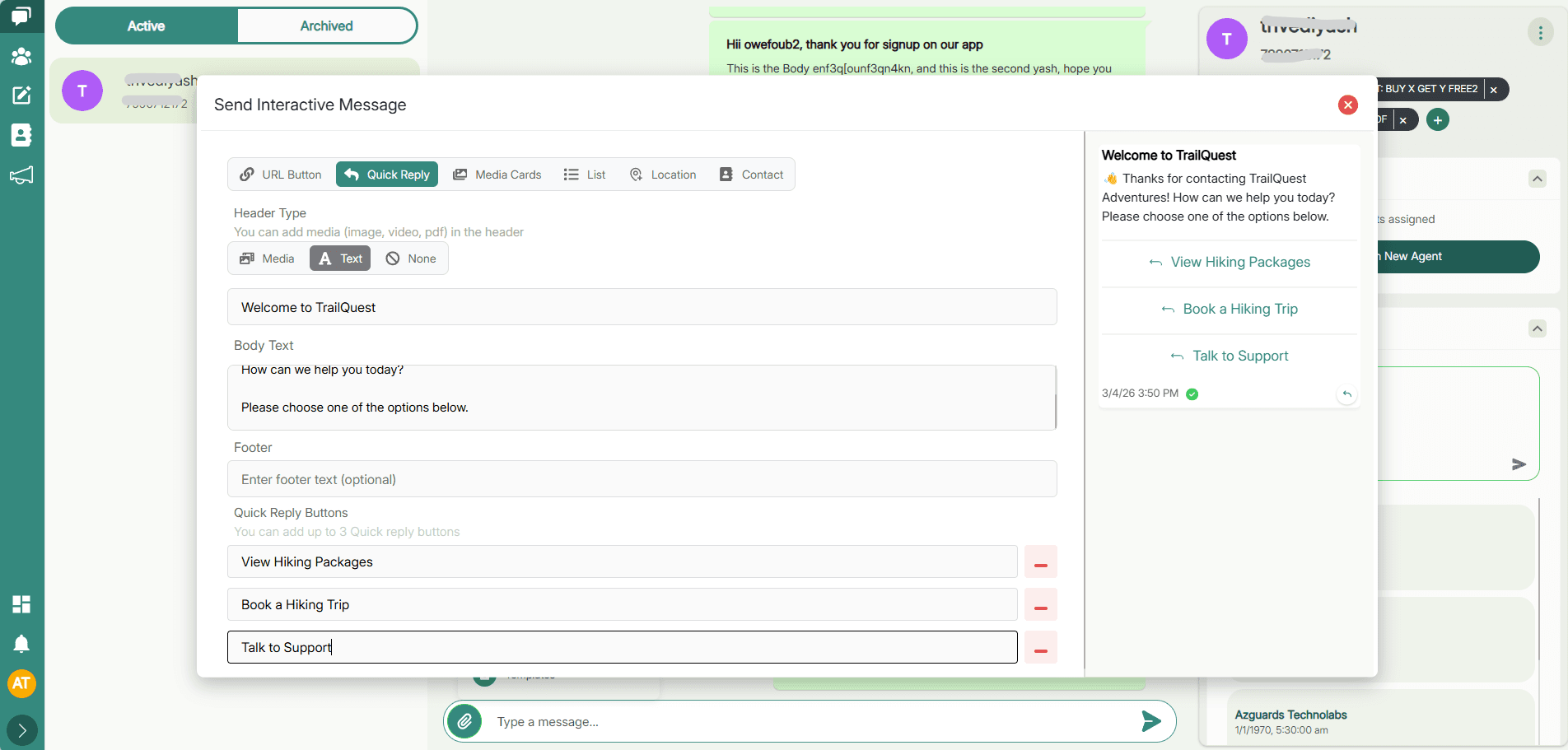
Reply Button Messages present the user with up to 3 distinct buttons attached directly to the message body. This is the simplest and most immediate form of interaction, perfect for quick decisions or simple workflows.
Structure
A Reply Button Message consists of:
- Header (Optional): Text, image, or document.
- Body (Required): The main text message.
- Footer (Optional): Short text at the bottom.
- Buttons (Required): Up to 3 buttons, arranged vertically or horizontally depending on the device and text length.
- Button Text (Required): The label on the button (up to 20 characters).
Common Use Cases
- Simple Surveys/Feedback: E.g., "How was your experience?" [Excellent] [Average] [Poor].
- Booking Confirmation: E.g., "Confirm appointment for tomorrow?" [Yes, Confirm] [No, Cancel].
- Opt-in/Opt-out: E.g., "Would you like to receive promotional offers?" [Yes] [No].
- Payment Reminders: E.g., "Your invoice is due." [Pay Now] [Remind Me Later].
- Branching Logic: Guiding a user through a simple flow (e.g., "Are you an existing customer?" [Yes] [No]).
Constraints
- Maximum 3 buttons per message.
- Button text is limited to 20 characters.
- Cannot be sent outside the 24-hour window (unless they are predefined buttons within an approved template).
3. Call-to-Action (CTA) URL Button Messages
Description
Call-to-Action (CTA) URL Button Messages allow you to send a message with a highly visible button that directs users to a specific web page. This provides a cleaner experience than pasting raw, lengthy URLs in the text body and helps drive traffic to external resources, booking pages, or payment links.
Structure
A CTA URL Button Message consists of:
- Header (Optional): Text, image, or document.
- Body (Required): The main text message explaining the call to action.
- Footer (Optional): Short text at the bottom.
- CTA Button (Required): A button containing the display text (up to 20 characters) and the destination URL.
Common Use Cases
- Driving Traffic: E.g., "Read our latest blog post." [Read Now].
- External Booking/Payment: E.g., "Complete your booking on our website." [Book Now].
- Lead Generation/Sign-ups: E.g., "Register for our upcoming webinar." [Register Here].
Constraints
- Maximum 1 CTA button per message.
- The button text is limited to 20 characters.
- Cannot be sent outside the 24-hour window (unless it's part of an approved template).
4. Media Carousel Messages
Description
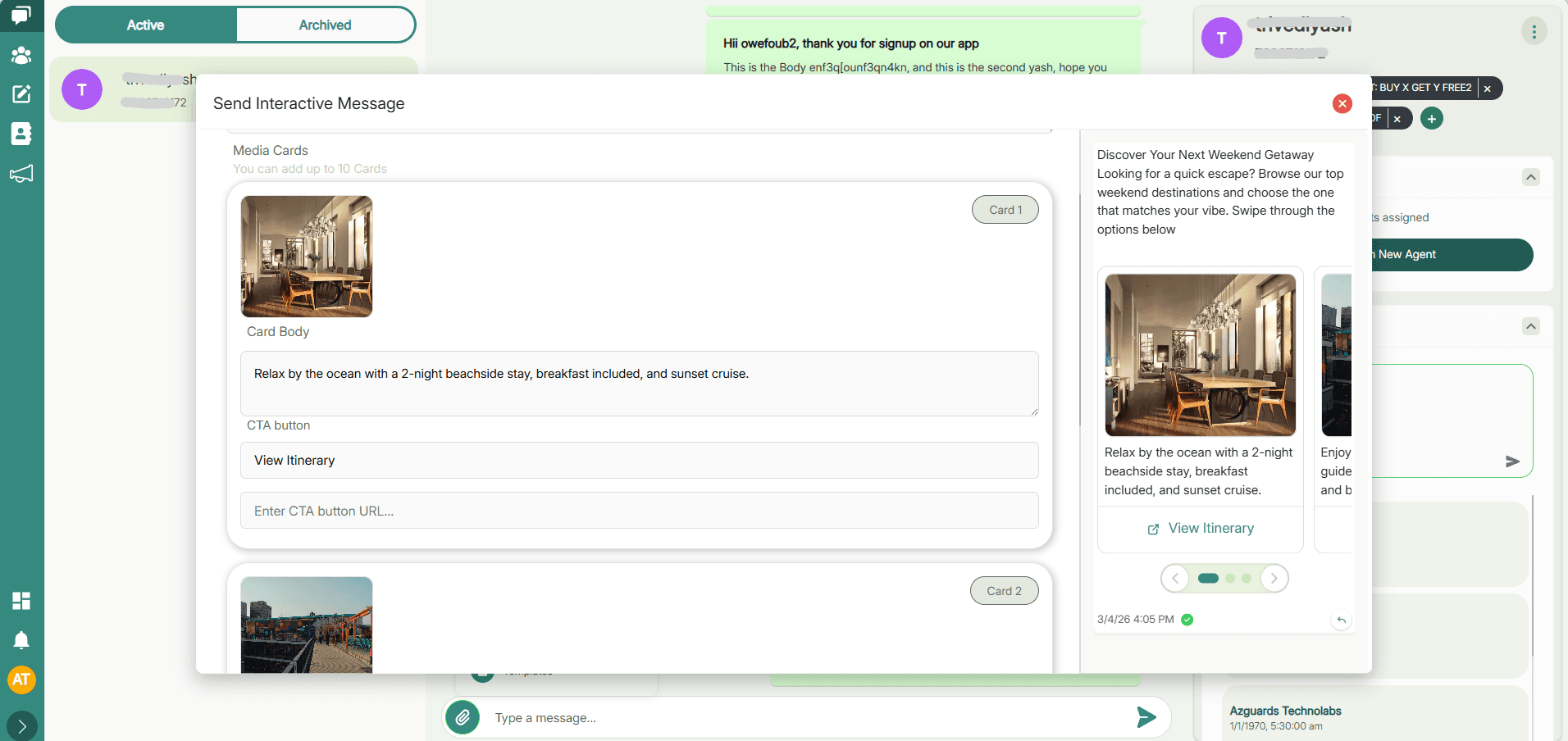
Media Carousel Messages allow you to display a horizontally scrollable set of up to 10 customizable cards within a single message. Carousels offer a highly visual and engaging way for customers to browse multiple items or options without leaving the chat.
Structure
A Carousel Message consists of:
- Body (Required): An introductory text above the carousel.
- Cards (Required): Up to 10 cards, each containing:
- Header (Required): An image or video.
- Body (Optional): Descriptive text for the card.
- Buttons (Optional): Up to two buttons per card (Reply Buttons or CTA URL Buttons).
Common Use Cases
- Product/Service Showcase: Highlighting multiple offerings with images and specific actions (e.g., [Buy] or [Learn More]).
- Event Promotions: Browsing upcoming events or tours with visual context.
- Step-by-Step Guides: Visually demonstrating a process through a sequence of cards.
Constraints
- Minimum 2 and maximum 10 cards per carousel.
- All cards must have the same button structure (same number and type of buttons).
5. Location Messages (Request and Send)
Description
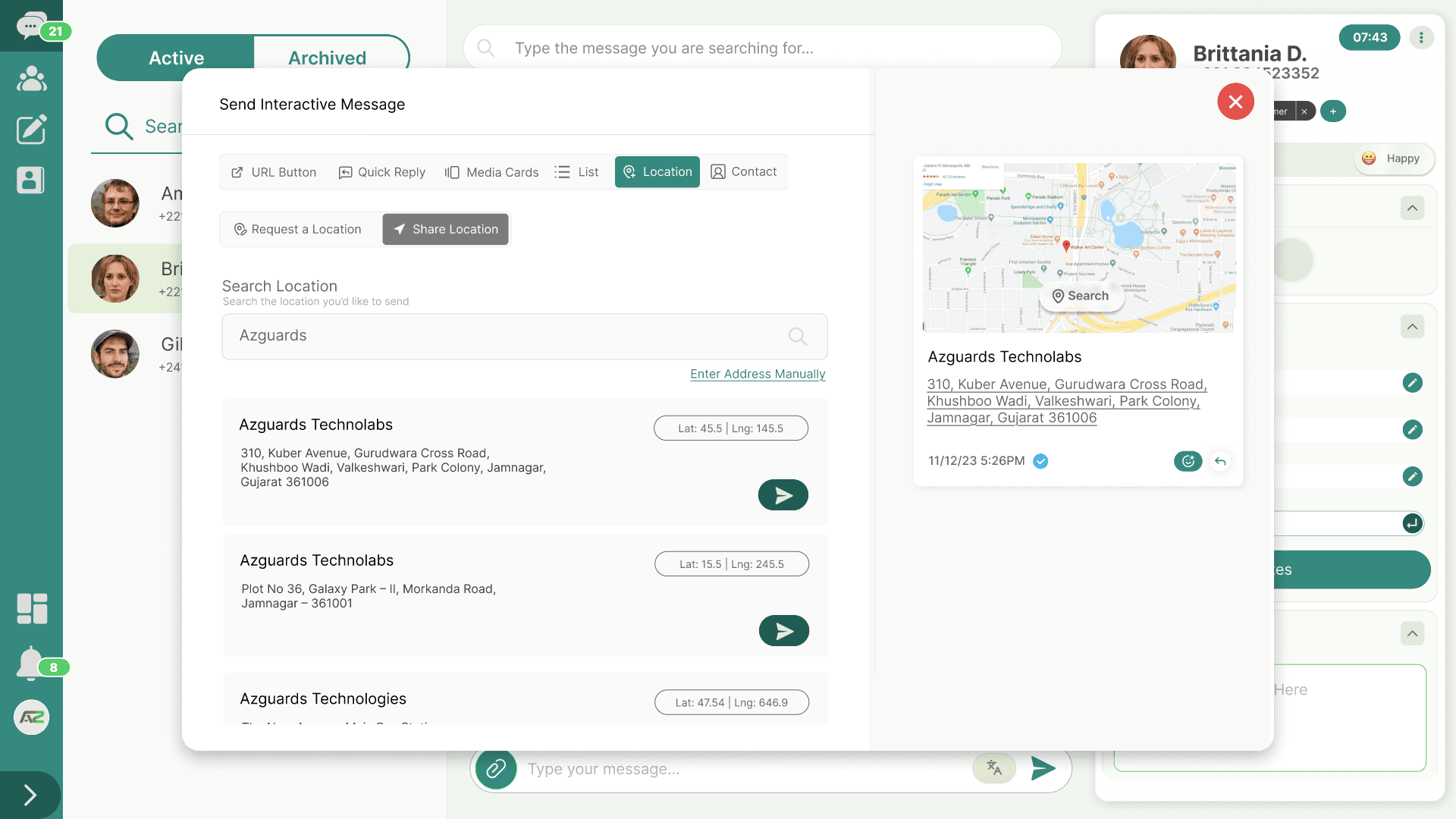
Location Messages enable the seamless exchange of geographical locations between businesses and users. Businesses can proactively share a fixed location (like a store address) or send an Interactive Location Request Message, which prompts the user with a button to easily share their current location.
Structure
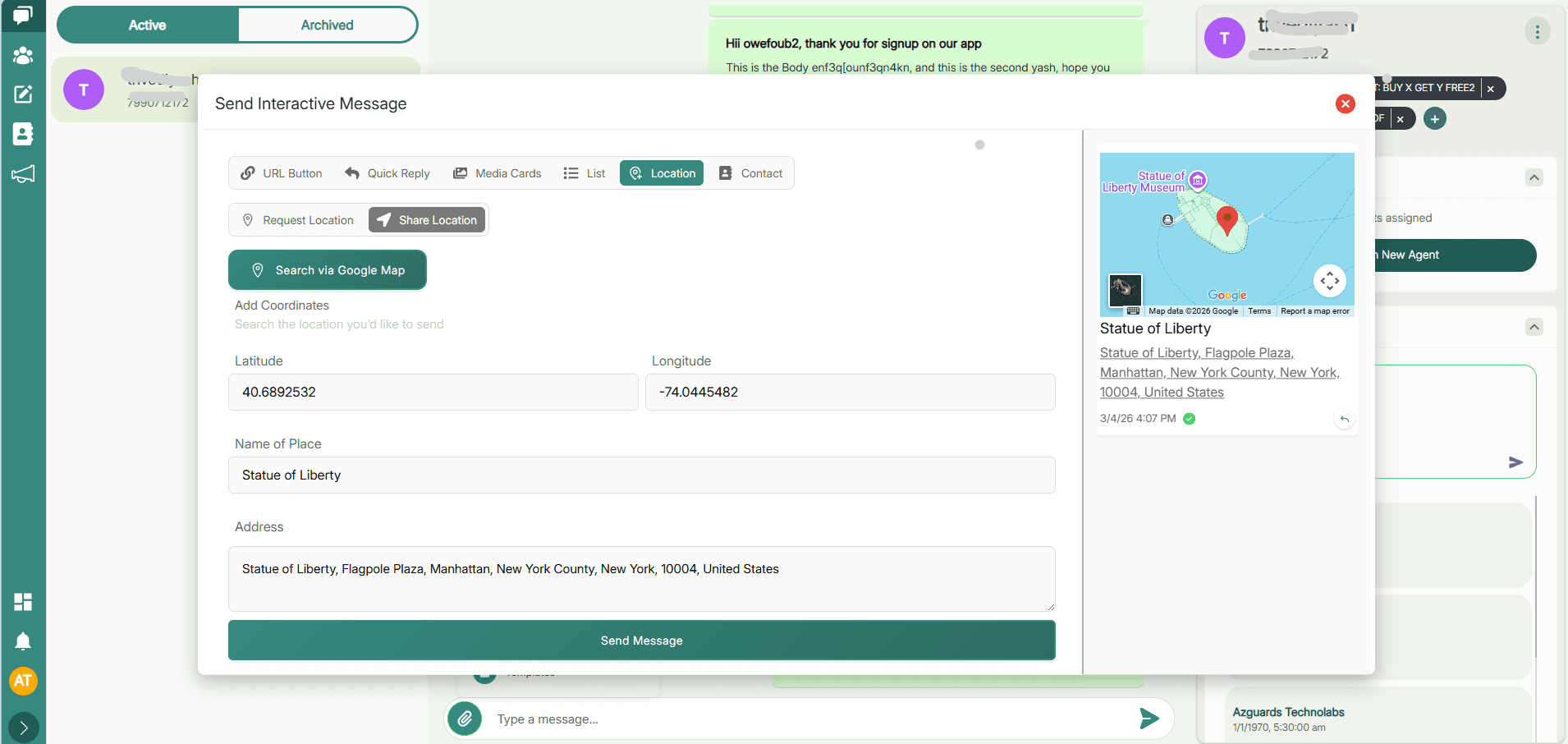
Send Location: Contains Longitude, Latitude, Name (optional), and Address (optional), rendered as a map snippet in the chat. You can quickly search your location using the integrated maps feature
Request Location:
- Body (Required): Text asking the user to share their location.
- Button (Required): A native "Send Location" button that opens the device's location picker.
Common Use Cases
- Store Finders: Sharing the exact coordinates of the nearest branch.
- Delivery Tracking/Updates: Requesting the user's location to confirm a delivery destination.
- Service Dispatching: Asking for location to send roadside assistance or home services.
6. Contact Messages (Request and Send)
Description
Contact Messages allow businesses to send or request structured contact information (vCard format) directly within WhatsApp. This is more reliable and user-friendly than typing out names, phone numbers, and emails as plain text.
Structure
- Send Contact: Select contact from the contact list and share it from the interactive message popup
- Request Contact: While there isn't a dedicated "Request Contact" interactive UI button like for location, businesses simply prompt users via a standard text or Reply Button message to use WhatsApp's native attachment feature to share a contact card.
Common Use Cases
- Sharing Support Details: E.g., "Save our dedicated VIP support number." (Sends contact card).
- Referrals/Introductions: Providing the contact details of a specific agent or account manager.
- Lead Collection: Prompting the user to share their friend's contact card for a referral program.
7. Single Product Messages (Catalog Integrations)
Note: This feature requires integration with a Meta Commerce Catalog.
Description
Single Product Messages allow you to send a specific item from your Facebook/WhatsApp product catalog directly to the user. The item is displayed as an interactive card.
Structure
The message automatically pulls details from your catalog, displaying:
- Product Image.
- Product Title.
- Price.
- A "View Item" button that opens the detailed product view within WhatsApp.
Common Use Cases
- Responding to Specific Inquiries: E.g., A user asks, "Do you have the red shoes in size 10?" You reply with the specific product card.
- Targeted Recommendations: Sending a personalized product suggestion based on previous conversations.
8. Multi-Product Messages (Catalog Integrations)
Note: This feature requires integration with a Meta Commerce Catalog.
Description
Multi-Product Messages are similar to List Messages but specifically designed for e-commerce. They allow you to send a selection of up to 30 items from your catalog, organized into sections.
Structure
- Header/Body/Footer: Similar to standard List Messages.
- Product Sections: You can define sections (e.g., "Tops", "Bottoms") and populate them with specific products from your catalog.
- "View Items" Button: Opens a catalog view within WhatsApp showing the selected items.
Common Use Cases
- Sharing Collections: E.g., "Check out our new summer collection."
- Personalized Menus: Sending a customized list of products a user might be interested in.
- Cross-Selling/Upselling: Showing related items after a purchase inquiry.
Choosing Between Lists and Buttons
- Use Reply Buttons when you have a small number of clear, distinct choices (1 to 3 options), such as Yes/No questions or simple rating scales. They provide the most immediate interaction.
- Use List Messages when you need to present more complex choices, categorize options into sections, or offer a larger menu (up to 10 options), such as navigating a FAQ or selecting from a list of services.