
User Attributes and Tags
To move beyond generic broadcast messaging and create highly personalized, targeted campaigns, you must utilize User Attributes and Tags. These tools allow you to structure your contact data dynamically.
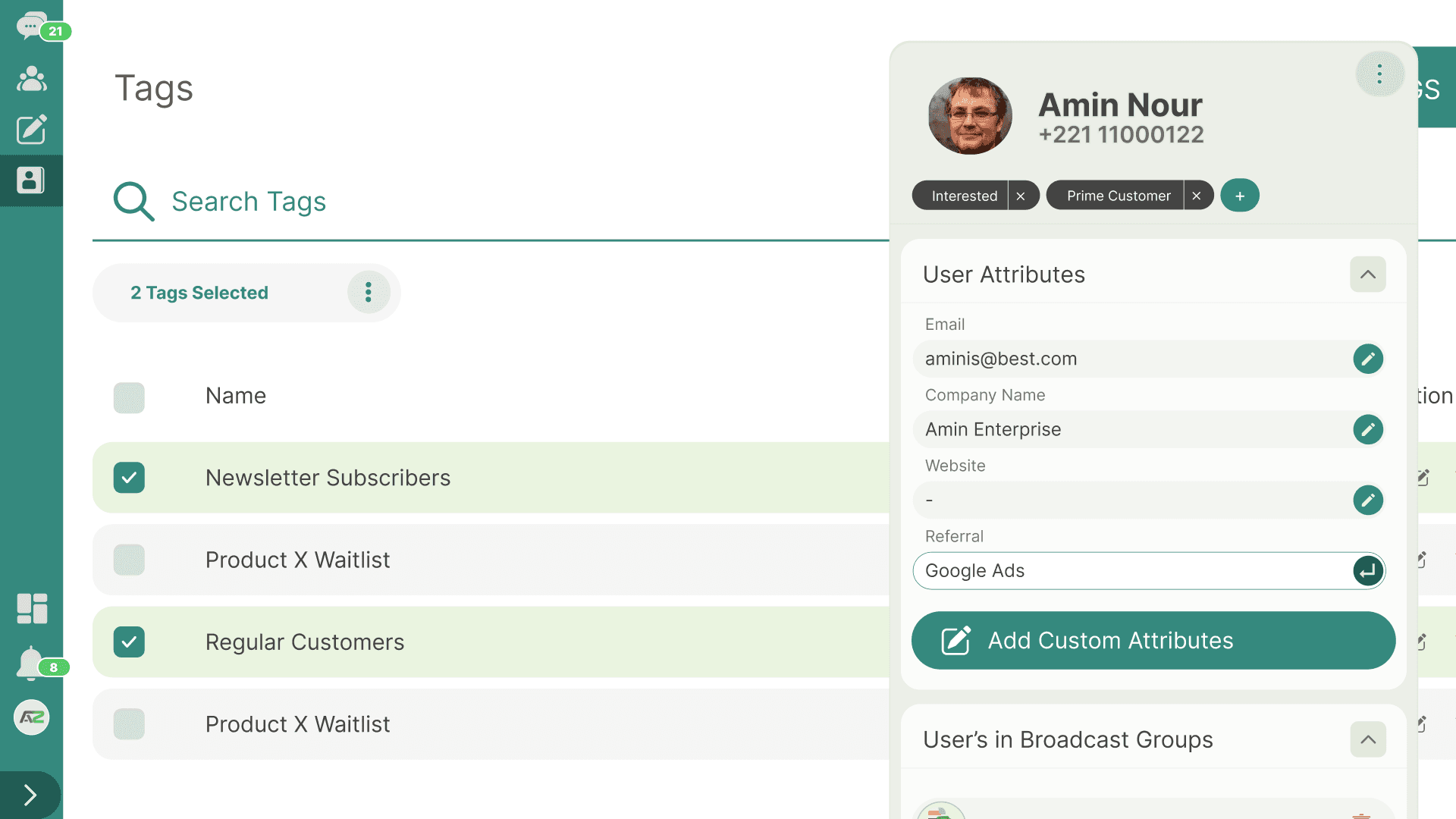
User Attributes
What are User Attributes?
User Attributes are custom data fields that you define to store specific information about your contacts. While WhataTalk provides standard fields (Name and Phone), your business likely needs more context.
Examples of Custom Attributes:
- E-commerce:
Last_Purchase_Date,Total_Spent,Favorite_Category,Cart_Abandon_URL. - Services/SaaS:
Subscription_Tier(Free, Pro, Enterprise),Renewal_Date,Account_Manager. - General:
City,State,Date_of_Birth,Lead_Source.
1. Defining Attributes (Account Level)
Before using an attribute, you must define it globally in the system settings. When creating an attribute globally, you can add a default value. When that attribute is assigned to a contact, this default value will be auto-populated.
- Navigate to Settings > User Attributes (or similar configuration area).
- Click "Add Attribute" or "Create Custom Field".
- Name the Attribute: Use a clear, descriptive name (e.g.,
Loyalty_Points). Avoid spaces; use underscores if necessary - Set a Default Value (Optional): Define a standard value that will automatically apply when this attribute is assigned to a new contact.
- Click "Save".
Note: You can also quickly create new attribute from attribute assignment screen from contact sidebar or add/edit contact from
2. Assigning Attributes to a Contact
Once defined at the account level, you can assign these attributes to specific contacts.
- This can be done individually by editing a contact's profile.
- Attributes can also be mapped during bulk imports via CSV/Excel.
3. Assigning a Value to a Contact Attribute
After assigning an attribute to a contact, you can provide or update its specific value for that user.
- Manual Entry: Update the value directly within the contact's details (e.g., changing
Loyalty_Pointsfrom the default0to50). - Automated/Bulk Updates: Values can be updated via file imports, API integrations, or automated system actions.
---
Tags
What are Tags?
Tags are simple, flexible labels used to categorize or group contacts quickly. Unlike attributes (which store specific data values like "150"), a tag is just a label (like "VIP" or "Lead").
A single contact can have many tags, and a single tag can be applied to many contacts.
Examples of Tags:
VIPWholesale_ClientEvent_Attendee_2023Support_Ticket_OpenDo_Not_Contact
Creating and Managing Tags
- Navigate to Settings > Tags (or a similar area, sometimes managed directly on the Contacts page).
- Click "Add Tag".
- Name the Tag: Keep it short and descriptive.
- Click "Save".
Applying Tags to Contacts
There are two ways to assign tags:
- Manually (Single Contact): Edit a specific contact's profile and select tags from a dropdown menu.
- Bulk Import: Include a "Tags" column in your CSV/Excel upload and comma-separate the tags (e.g.,
VIP, Newsletter_Subscriber).
Using Tags
- Quick Filtering: On the Contacts page, filter your list to show only users with the
VIPtag to see who your top customers are. - Campaign Targeting: The primary use of tags is to build audiences for campaigns. You can select to send a broadcast specifically to the segment of users who have the
Event_Attendee_2023tag.
---
Attributes vs. Tags: When to use which?
- Use an Attribute when the data has a specific value that varies between users and you might want to use that value in a message or filter by range (e.g., Age, Points, City).
- Use a Tag when you want to create a simple "Yes/No" grouping or category (e.g., they are either a VIP or they aren't; they attended the event or they didn't).