
Importing Contacts in Bulk
Adding contacts one by one is inefficient for established businesses. WhataTalk's Bulk Import feature allows you to upload thousands of contacts simultaneously from a spreadsheet, making it the fastest way to populate your database or update existing records.
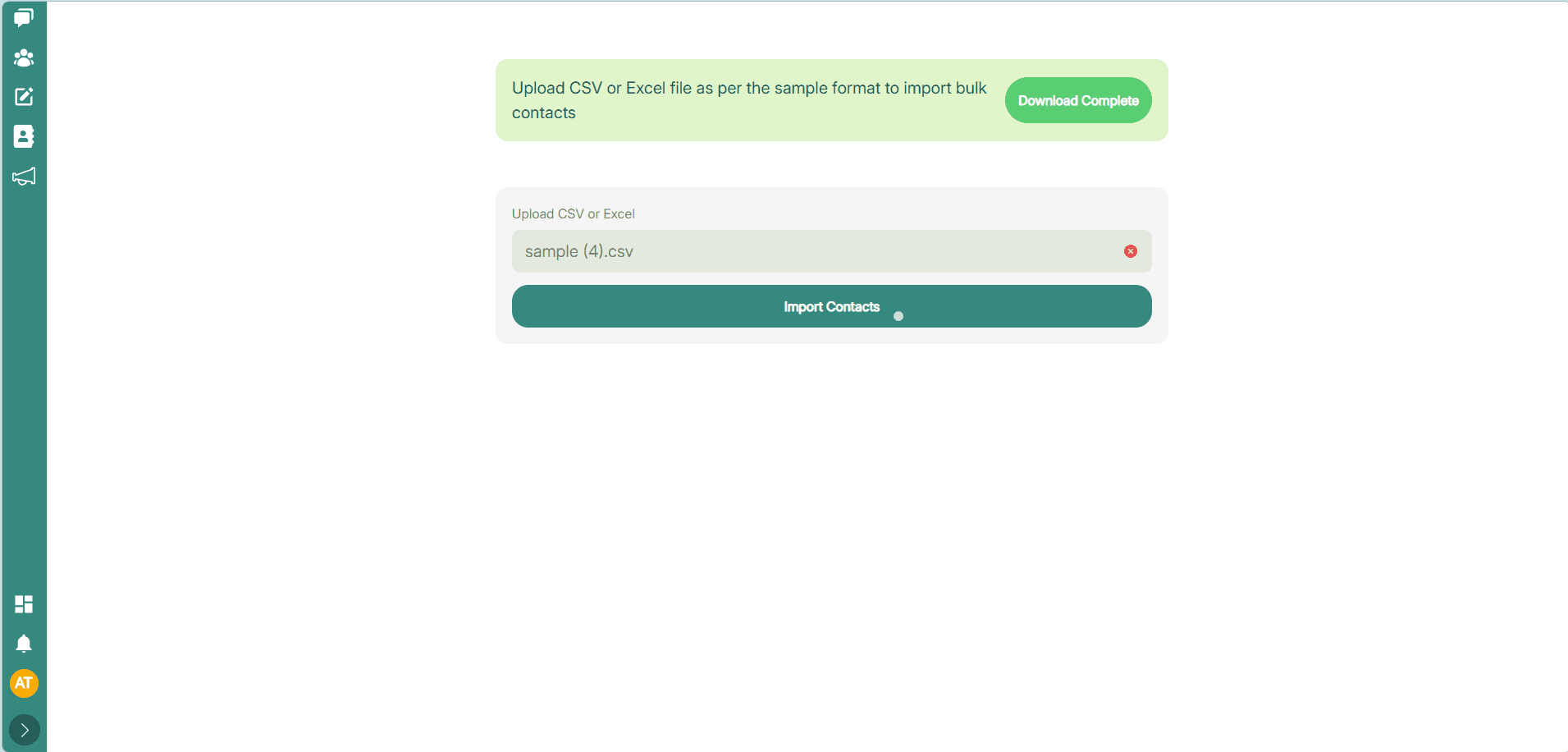
Accessing the Import Tool
Navigate to Dashboard > Import Contacts (or look for an "Import" button on the main Contacts page, often near "Add Contact").
Preparing Your Import File
Before uploading, you must ensure your data is formatted correctly. This is the most common source of import errors.
Supported File Formats
- .csv (Comma Separated Values): The most universally supported format.
- .xlsx (Microsoft Excel): Often easier to work with if you have complex data or formatting.
Required Column: Mobile Number
The only strictly required piece of information for a WhatsApp contact is their phone number.
- Column Header: You must name it exactly as required by the template (e.g., "Mobile Number").
- Format is Critical:
- Must include the Country Code. (e.g.,
1for US/Canada,44for UK,91for India). - Must NOT include the
+symbol. (e.g.,15551234567, not+15551234567). - Must NOT include spaces, dashes, or parentheses. Clean your data in Excel/Sheets before importing.
- Must include the Country Code. (e.g.,
Optional (But Recommended) Columns
To maximize the value of WhataTalk, include as much data as possible:
- First Name
- Last Name
Downloadable Template
Most import tools provide a sample file. Click "Download Sample File" on the import page. This provides a pre-formatted spreadsheet that you can simply paste your data into, ensuring your file meets all the structural requirements.
The Import Process
Your file must strictly follow the required structure. You can download the sample file to ensure your data is correctly formatted before uploading.
The process is as follows:
- Upload the file: Upload your prepared
.csvor.xlsxfile containing your contacts. - File Process and Validation: The system will process and validate the uploaded file in the backend.
- Import Contacts: If the file is successfully validated, the button to import contacts will be enabled. Click it to proceed with the import.
- Receive Report: Post-import, you will receive a response with a detailed report of the operation results.