
Business & Users Onboarding
•Inviting and Managing Agents
As an Admin or Owner, building your team within WhataTalk is a straightforward process managed entirely from the dashboard settings.
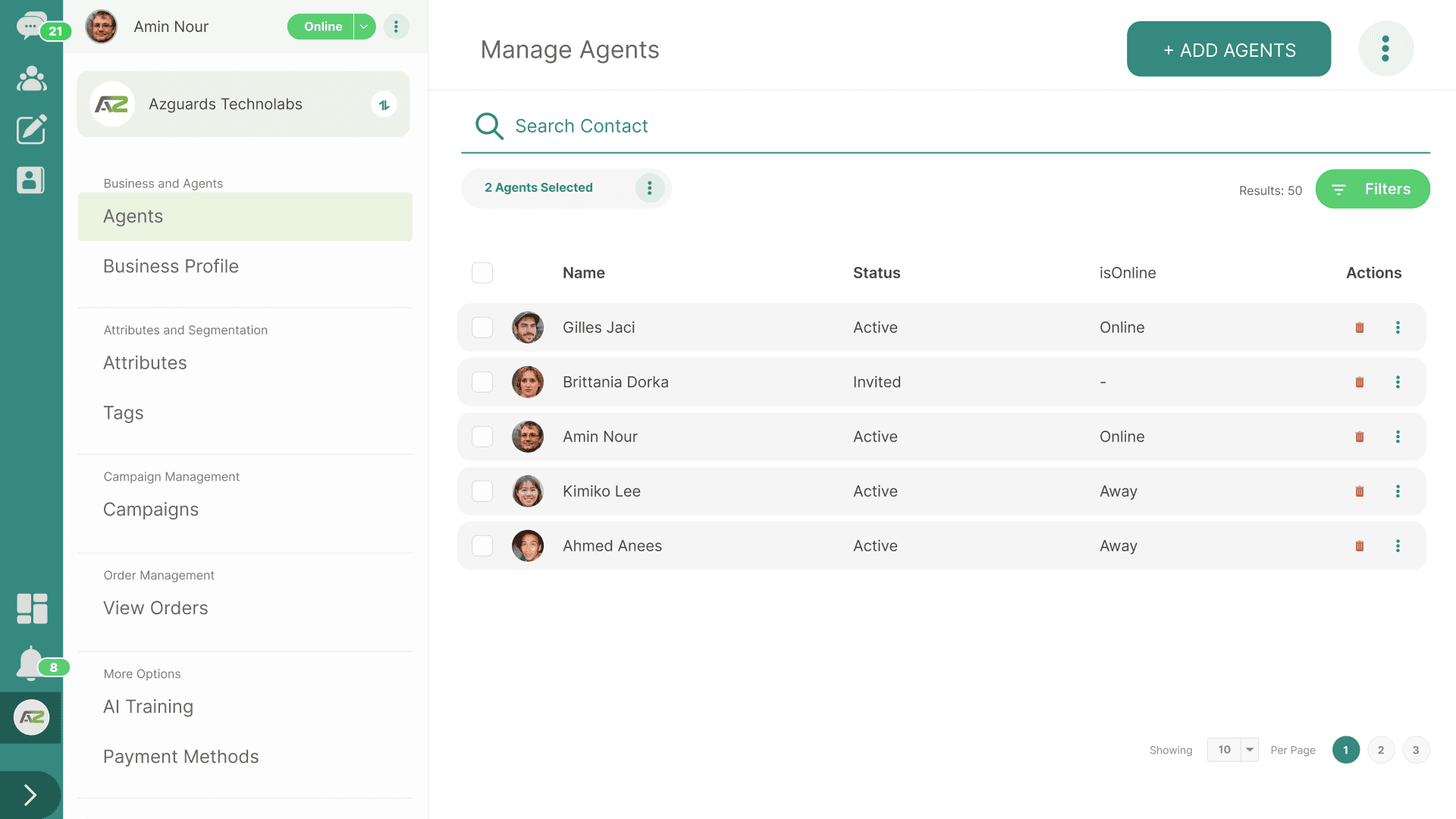
1. Inviting a New Agent
When you invite a new user, you are sending an invitation to their email address, allowing them to create a login that connects directly to your Business Workspace.
Step-by-Step Process:
- Navigate to the Agents management page. This is typically found via Settings > Agents or directly from the sidebar (
/profile-settings/agents). - Click the prominent "ADD AGENTS" or "Invite User" button (usually in the top right corner).
- A popup modal will appear requiring two pieces of information:
- Email Address: Enter the professional email address of the team member. (e.g.,
[email protected]). - Role: Select the appropriate access level from the dropdown menu (Agent, Admin, or Owner). Review Section 10.1 if you are unsure which role to assign.
- Email Address: Enter the professional email address of the team member. (e.g.,
- Click "SEND INVITE".
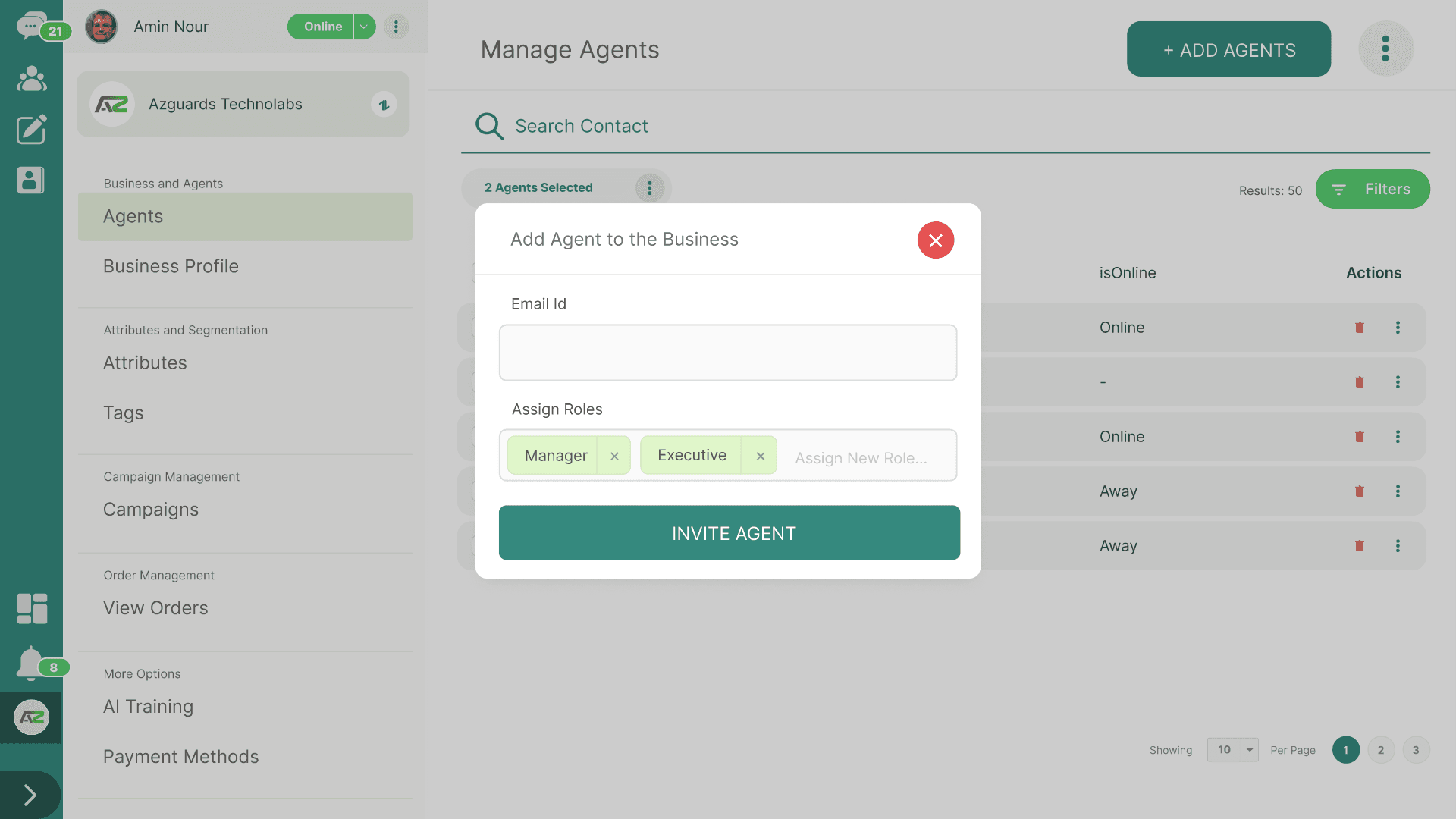
The User Experience:
- The system immediately sends an email to the provided address.
- The status of that agent in your list will show as INVITED.
- The user account does not exist then they must click the link in the email, set up their password, and complete their basic profile (Name, Profile Picture) to activate their account.
- Once completed, their status in your dashboard changes to ACTIVE.
2. Managing the Agent Roster
The main Agents page (/profile-settings/agents) displays a tabular list of everyone who has access to the workspace.
Information Displayed:
- Agent Info: Name and Email address.
- Role: Their current permission level (Admin, Agent).
- Status:
- 🟢 ACTIVE: They have accepted the invite and can log in.
- 🟡 INVITED: The invite was sent, but they haven't set up their account yet.
Filtering and Searching
If you have a large team, you can use the tools at the top of the list:
- Search Bar: Quickly find an agent by typing their name or email.
- Filters: Click the filter icon to show only agents with a specific status (e.g., show only
INVITEDusers so you can remind them to check their email).
3. Editing an Agent's Role
Team responsibilities change, and you may need to promote an Agent to an Admin, or vice versa.
- From the Agents list, click on the agent's name or row to open their profile details (or click the Edit Icon next to their name).
- Locate the Role dropdown menu.
- Select the new role.
- Click "Save".
Note: The changes take effect immediately. If the agent is currently logged in, they may need to refresh their page to see new menu options (like the Campaigns tab if promoted to Admin).
4. Removing an Agent
When an employee leaves the company or moves to a different department, you must revoke their access to protect customer data.
- From the Agents list, locate the specific agent.
- Click the Trash Icon (Delete) in the actions column.
- A strict confirmation popup will appear. Confirm the deletion.
Important Considerations when Deleting:
- Historical Data: Deleting an agent does not delete the messages they sent to customers. The conversation history remains intact for compliance and continuity.