
Contact Module Overview
The Contacts module is the foundation of your communication strategy in WhataTalk. It is essentially your CRM (Customer Relationship Management) system within the platform. Here, you store, organize, and manage all the individuals you plan to interact with via the WhatsApp Business API.
Effective contact management is crucial for personalizing messages, segmenting your audience for targeted campaigns, and maintaining a high quality rating with Meta by ensuring you are messaging relevant users.
Effective contact management is crucial for personalizing messages, segmenting your audience for targeted campaigns, and maintaining a high quality rating with Meta by ensuring you are messaging relevant users.
Accessing the Contacts Directory
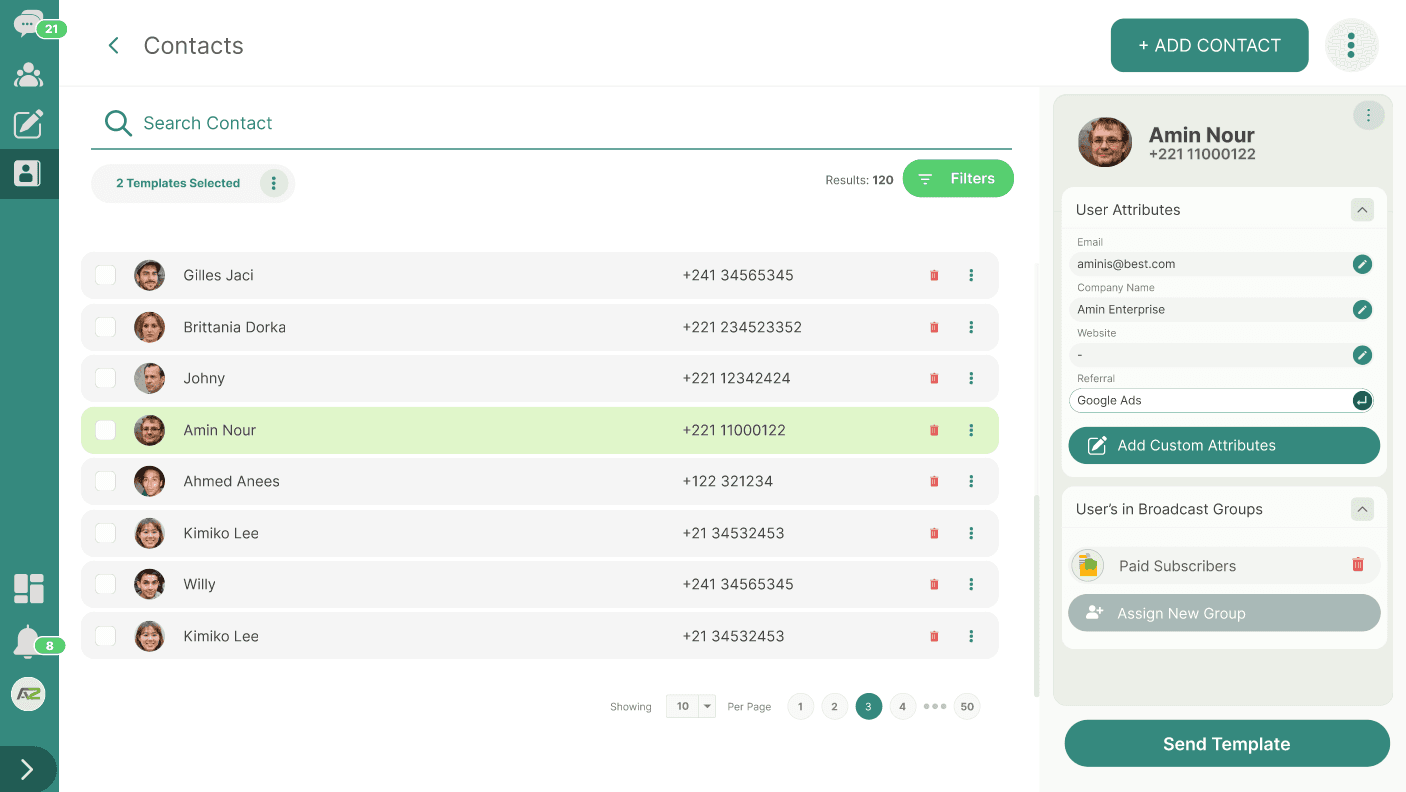
To manage your database, navigate to Contacts from the main sidebar
This main view displays a tabular list of all your contacts, providing a quick overview of key information such as Name, Phone Number, assigned Tags, and Opt-in status.
Basic Contact Operations
1. Adding a Single Contact Manually
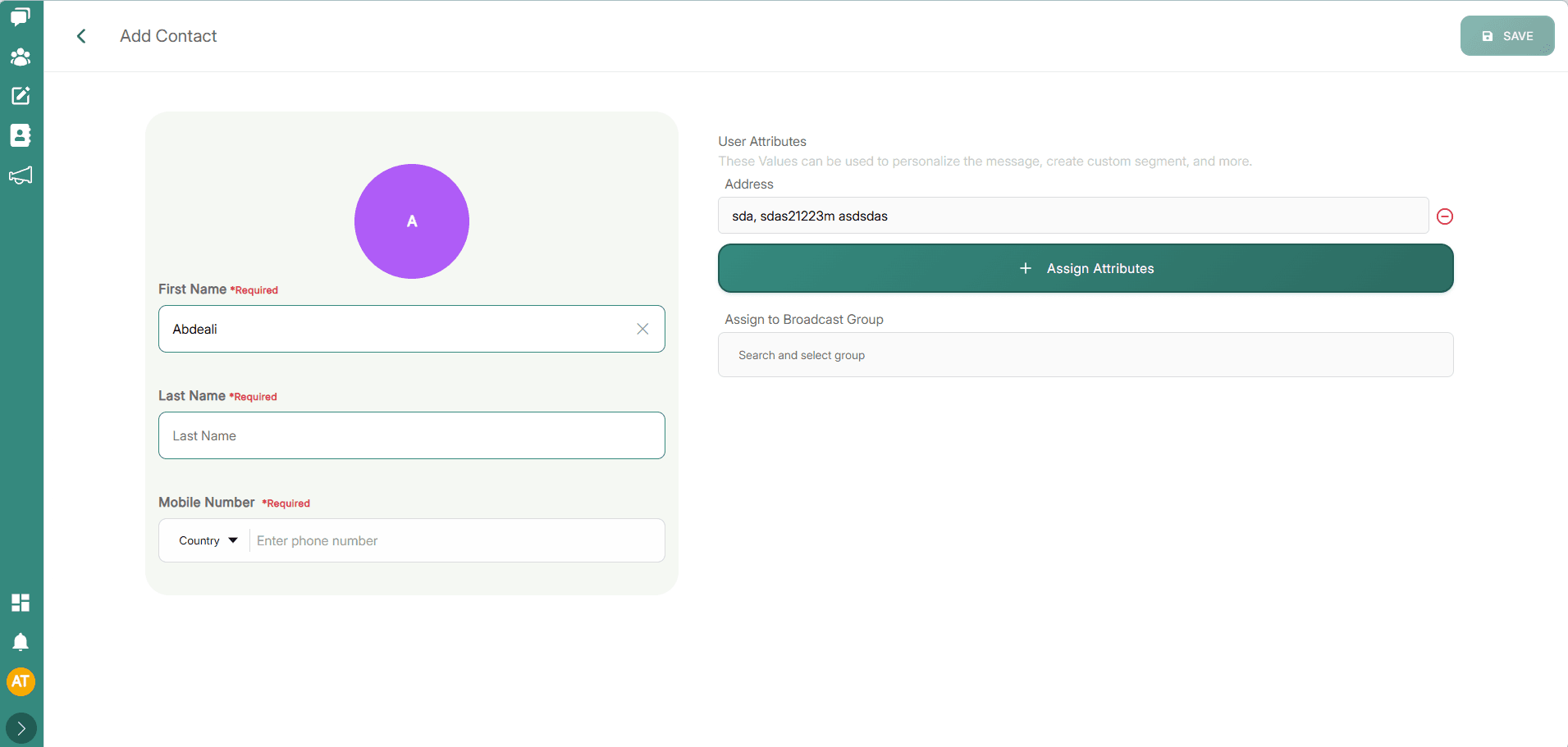
If you need to add a new customer quickly, you can do so directly from the interface:
- Click the "Add Contact" button (typically located at the top right of the Contacts page).
- A form or modal will appear.
- Required Field:
- Phone Number: This is the most critical field. It must include the correct country code (e.g.,
1for US,44for UK,91for India) but should not include the+symbol or any spaces/dashes (e.g.,15551234567).
- Phone Number: This is the most critical field. It must include the correct country code (e.g.,
- Optional Fields (Highly Recommended for Personalization):
- First Name & Last Name: Essential for addressing the user properly in templates.
- Email Address: Useful for cross-channel communication if you use other tools.
- Assignments (Optional):
- Tags: Apply existing tags (e.g.,
VIP,New Lead) to categorize the user immediately. - Custom Attributes: Fill in any custom fields you have defined (e.g.,
City: New York,Loyalty Tier: Gold). See 4.3 Attributes & Tags for more details.
- Tags: Apply existing tags (e.g.,
- Click "Save".
2. Viewing Contact Details
To see more information about a specific contact:
- Locate the contact in the list.
- Click on their row or a specific "View" icon.
- This opens a sidebar with detailed profile view showing all their associated data, tags, attributes.
The sidebar will also be available in the conversation screen for that specific contact.
3. Editing a Contact
Customer information changes and keeping your database updated is important.
- From the detailed profile view (or via an "Edit" icon in the list), click to edit the contact.
- Update the necessary fields (Name, Email, Tags, Attributes).
- Note: Changing a phone number often requires creating a new contact, as the phone number acts as the unique identifier in WhatsApp.
- Click "Save Changes".
4. Deleting a Contact
If a user requests deletion of their data (e.g., for GDPR or CCPA compliance) or if a number is permanently invalid:
- Locate the contact.
- Click the Trash/Delete Icon.
- Confirm the deletion.
- Warning: Deleting a contact removes their profile and associated attribute data from WhataTalk. It does not necessarily delete historical conversation logs if they are required for compliance/auditing purposes (depending on your specific WhataTalk configuration).
Searching and Filtering
As your database grows, finding specific users becomes challenging. WhataTalk provides robust search and filter tools.
- Global Search: Use the search bar at the top of the contacts list to quickly find a user by Name.
- Advanced Filtering: Click the filter icon to apply specific criteria. This is essential for building temporary segments for quick messaging or analysis.
- Filter by specific Tags (e.g., show everyone tagged "Event Attendee").
- Filter by Custom Attributes (e.g., show everyone where "State" = "California").
- Filter by Opt-in Status (e.g., show only users who have explicitly opted in).
Importance of Opt-In Status
While you can add any number to your WhataTalk database, Meta policy strictly requires that you have explicit opt-in from a user before sending them proactive template messages.
Your contact management practices should include a way to track this (e.g., via a specific tag or a dedicated boolean attribute like Opted_In = True). Sending messages to users who have not opted in will likely result in user complaints, lowering your phone number's quality rating, and potentially leading to account restrictions by Meta.