
Creating Template
WhataTalk provides a user-friendly interface to build the various types of templates supported by Meta.
Accessing the Template Builder
- Log in to your WhataTalk dashboard.
- Navigate to Templates from the main menu (
/templates). - Click the "ADD TEMPLATE" button located at the top right of the screen.
Types of Templates Supported
WhataTalk supports the three primary formats allowed by Meta:
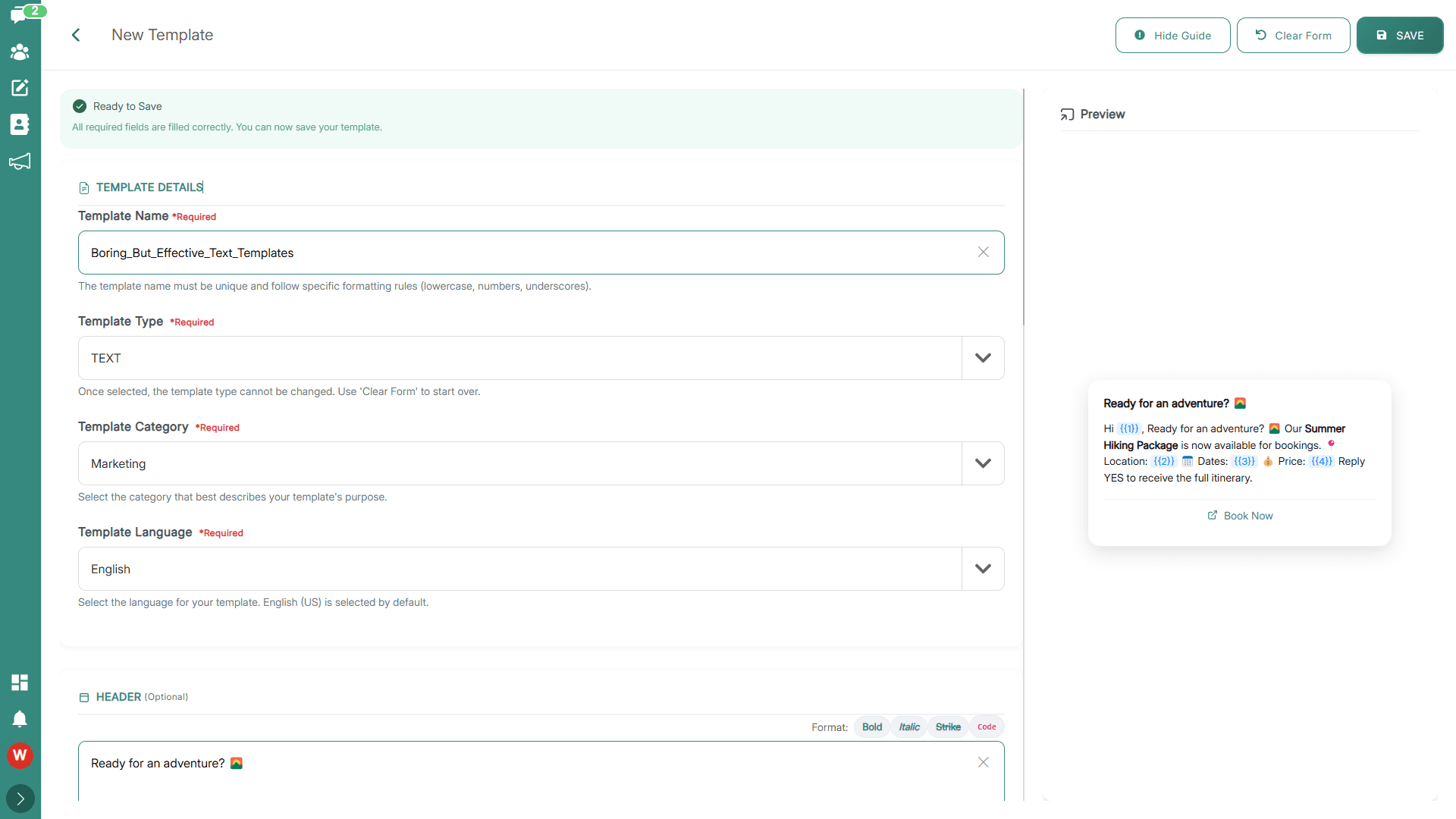
1. Text Templates: Simple text-based messages (can include emojis and variables).
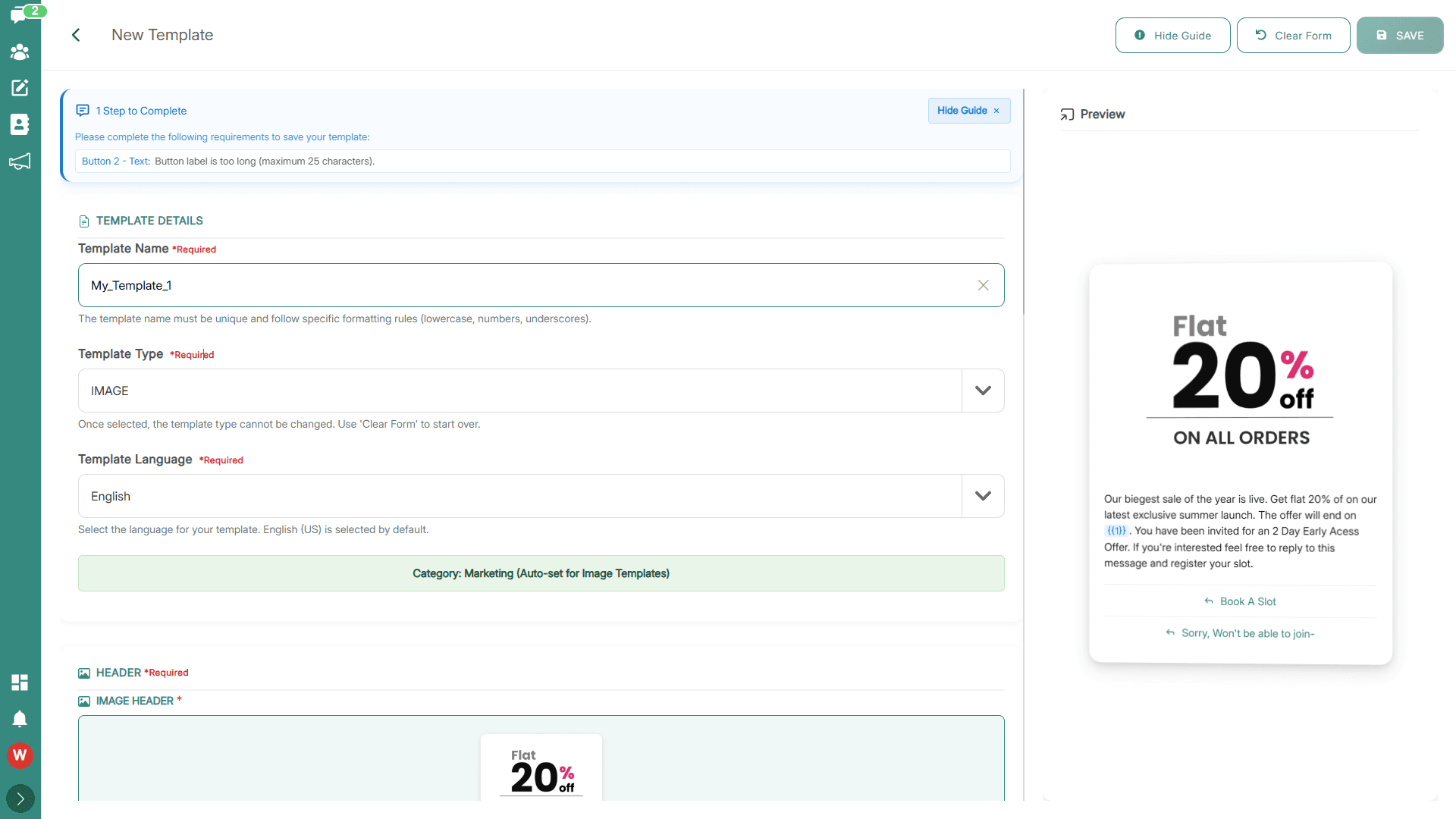
2. Media Templates: Messages that include a media header (Image, Video, or Document) along with text.
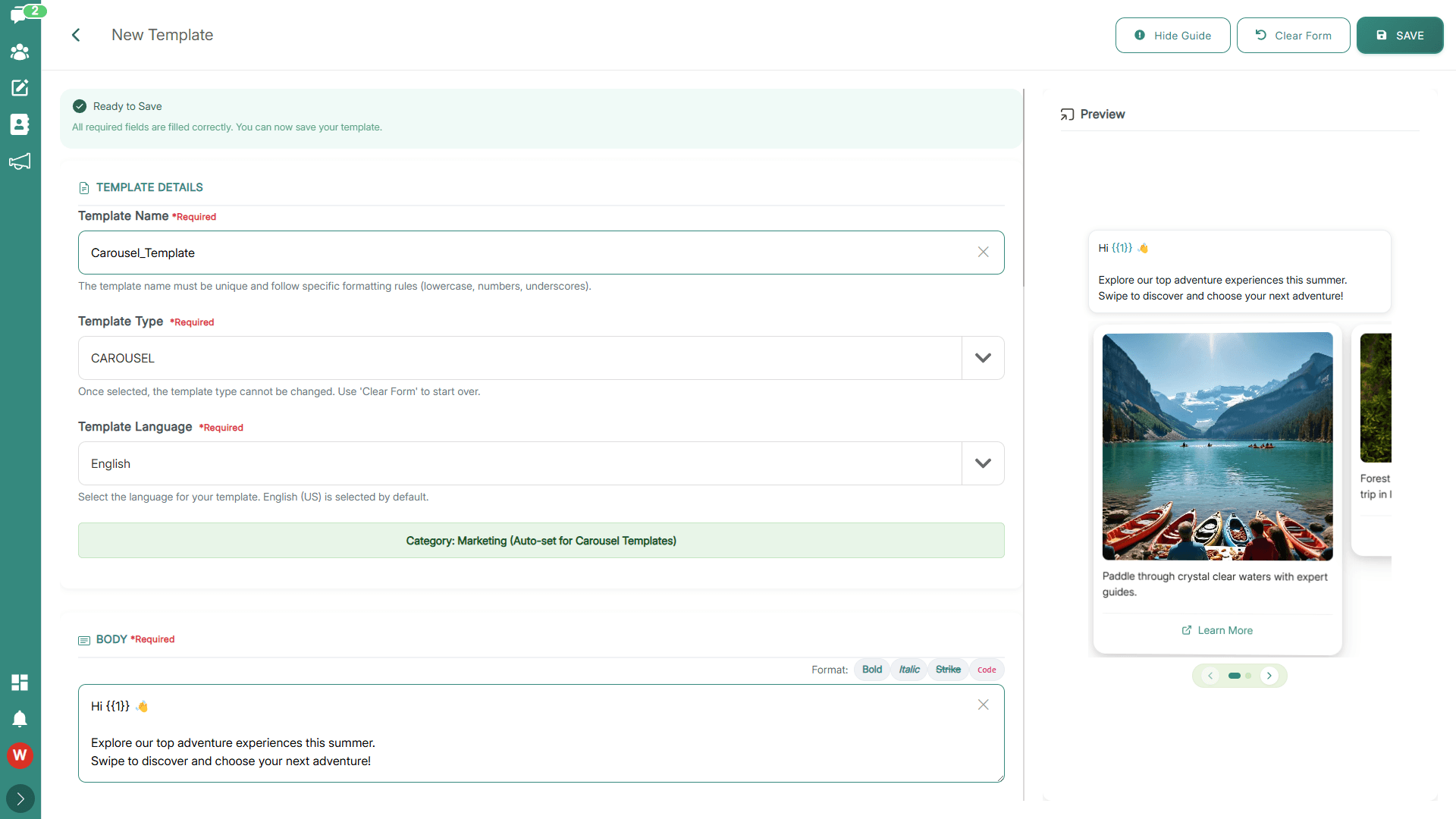
3. Carousel Templates: Highly interactive messages that allow users to scroll horizontally through up to 10 distinct "cards," each with its own image, text, and buttons. (Primarily used for Marketing).
Step-by-Step Creation Guide
1. Basic Information (All Types)
When you open the builder, you must first define the core attributes:
- Template Name: Choose a unique identifier for internal use.
- Constraint: Must only contain lowercase alphanumeric characters and underscores (e.g.,
order_update_v2). No spaces are allowed.
- Constraint: Must only contain lowercase alphanumeric characters and underscores (e.g.,
- Template Category: Select Marketing, Utility, or Authentication (see 3.1 Overview for definitions).
- Template Language: Select the language the template is written in. Ensure the content matches the selection exactly to avoid rejection.
- Template Type: Choose Text, Image, Video, Document, or Carousel.
2. Building the Content
The fields available change based on the selected Template Type.
A. Header (Optional for Text, Required for Media/Carousel)
The header appears at the very top of the message.
- Text (Optional for Text templates): A short introductory phrase (max 60 characters).
- Media (Required for Media templates): If you selected Image, Video, or Document as the type, you must upload a sample file. This helps Meta reviewers understand the context of the template.
- Note: The actual file sent to the user can be changed dynamically during a campaign, but the sample is required for approval.
B. Body (Required)
This is the main message content.
- Text Input: Enter your message here (up to 1024 characters).
- Template Variables: This is crucial for personalization. Use variables like
{{1}},{{2}},{{3}}to act as placeholders for dynamic data (like a user's name, an order number, or a date).- Example:
Hello {{1}}, your order {{2}} has been shipped. - Important: When submitting a template with variables, Meta often requires you to provide sample values for each variable so they understand the context. (e.g.,
{{1}}= "John",{{2}}= "12345").
- Example:
- Formatting: Standard WhatsApp formatting applies (e.g.,
*bold*,_italics_,~strikethrough~).
C. Footer (Optional)
A short line of text appearing at the very bottom, typically in a lighter gray font. (Max 60 characters). Often used for disclaimers or opt-out instructions (e.g., "Reply STOP to unsubscribe").
D. Buttons (Optional)
Buttons significantly increase engagement. You can add up to 3 buttons (or up to 10 across a Carousel).
There are two main types of buttons:
- Call to Action (CTA): Drives the user to take a specific action outside of WhatsApp.
- Visit Website: Opens a URL. You can use variables in the URL (e.g.,
https://example.com/order/{{1}}) to create dynamic links. - Call Phone Number: Initiates a phone call to a predefined number.
- Visit Website: Opens a URL. You can use variables in the URL (e.g.,
- Quick Reply: Allows the user to send a predefined text response with a single tap.
- Example: [Yes, confirm], [No, cancel], [Contact Support].
- Note: If you use a Quick Reply button, it will appear as an incoming message from the user in your WhataTalk Conversation interface, opening the 24-hour service window.
3. Creating Carousel Templates (Specifics)
If you chose "Carousel":
- Complete the basic info (Category must usually be Marketing).
- You will see an interface to add Cards.
- For each card (up to 10), you must provide:
- Header Image/Video: A media file for that specific card.
- Body Text: A short description.
- Buttons: Up to 2 buttons per card (usually CTA or Quick Reply).
- Carousels are excellent for showcasing product catalogs or distinct service options.
Final Review and Submission
Once you have filled out all required fields and uploaded samples:
- Review the Preview Panel on the right side of the screen to ensure the template looks as expected.
- Click "SAVE" or "SUBMIT".
- The template will immediately enter the PENDING state while Meta reviews it.